· Zayd Khan · order-limits · 4 min read
Quantity increments on Shopify: sell in packs, cases & multiples (setup guide)
Force customers to buy in packs of 2, 6, 12, or any quantity. Simplify fulfillment, reduce shipping costs, and streamline inventory with quantity increments.
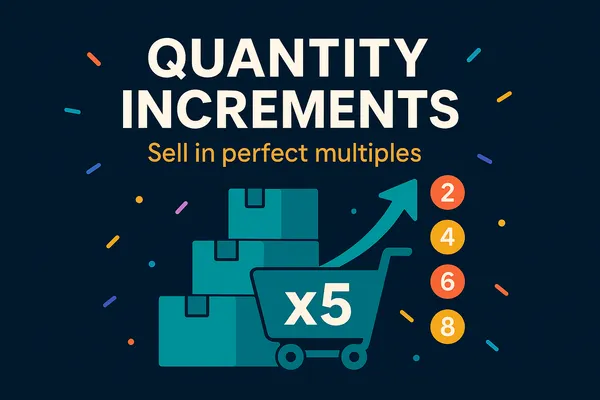
Ever wished you could make sure your customers only buy your product in sets of 2s, 5s, or maybe even dozens? That’s exactly what Quantity Increments lets you do. And it takes about 2 minutes to set up.
Whether you’re trying to simplify fulfillment, save on shipping, or create a better shopping experience, quantity increments give you real control over how products are sold. Here’s what they do, why they matter, and how other merchants use them.
What are quantity increments?
Picture this: you set the increment to 2, so customers can only buy 2, 4, 6, 8, or more. No single items or odd numbers like 3 at checkout! Set it to 5, and they’ll grab 5, 10, 15, or more. It’s all about clean and consistent batches.
This works for any product you can imagine! Selling sparkling water by the half dozen? Set the increment to 6. Shipping screws in bulk? Go for 100. It’s that flexible!
What this means (and why it matters)
With quantity increments, you’re not just limiting how much a customer can buy but you’re creating structure. This feature gives you control, cuts down on shipping hassles, and makes inventory management much easier.
Think of it like this: Instead of customers ordering odd numbers that throw off your packing process (like 3 or 7), you get orders in clean, predictable bundles such as 2s, 5s, 12s, or whatever works best for your Shopify store.
It’s a small setting with a huge impact. You can use it to:
- Reduce packaging waste
- Simplify fulfillment
- Standardize pricing
- Enable flexible mix-and-match bundles
- Offer wholesale-style rules to select customers
For stores selling physical products, especially in bulk or bundles, Quantity Increments save hours of fulfillment headaches every week. For more on pack-based selling, see how merchants use quantity increments.

Photo by Eric Prouzet / Unsplash
How to set up quantity increments using DC Order Limits
Setting it up in your DC Order Limits app is a breeze. Here’s how:
- Click “New Rule” and give it a name (for internal use).
- Go to the Quantity Increments section and enter your increment value
- Choose how it applies — to the whole cart, each product, or specific variants.
- Set the product, customer, and market eligibility.
- Click Save!
And just like that, your products will only be available in the exact quantities you set, making life easier for you and your customers!
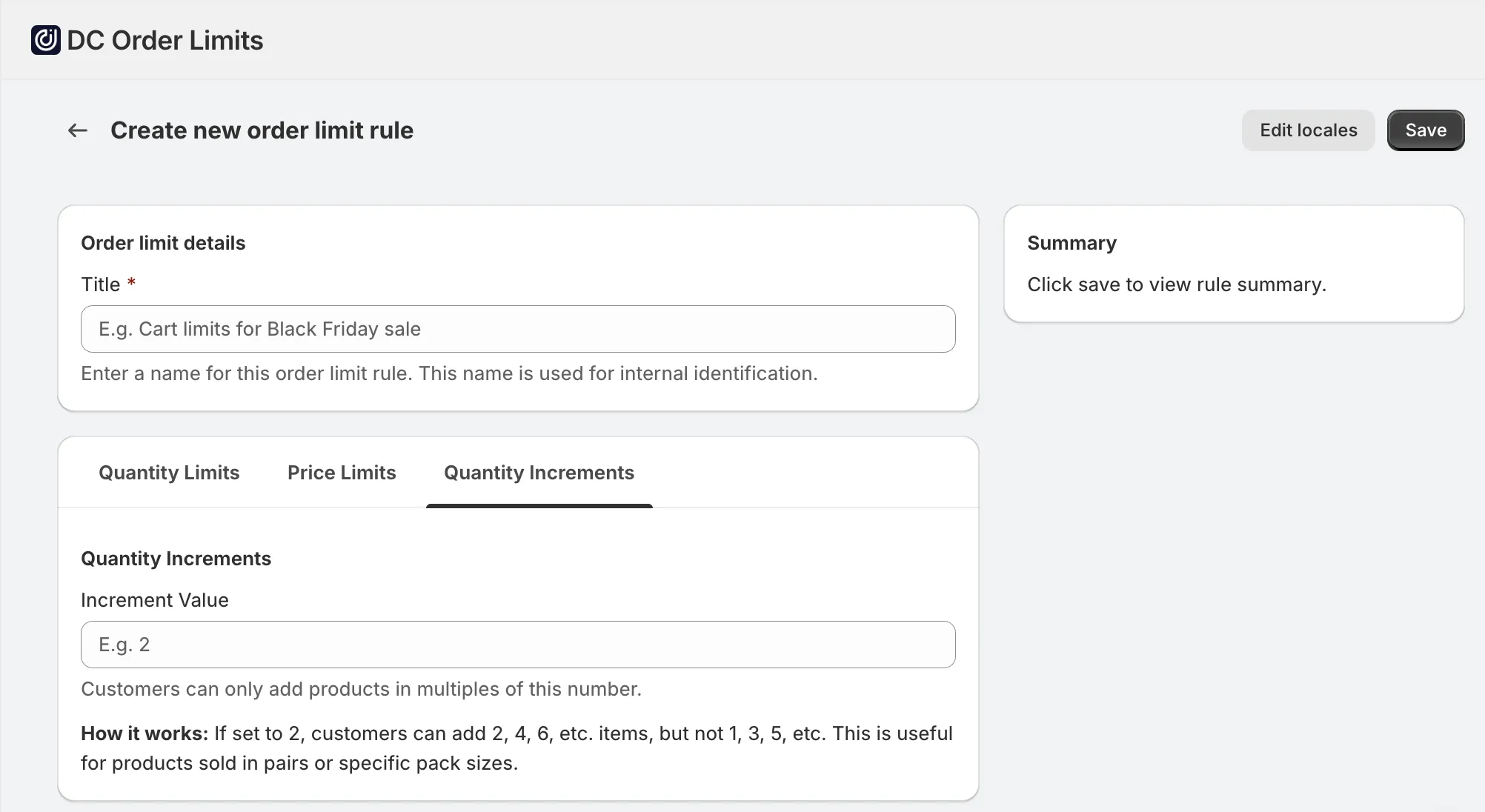
“Create new order limit rule” page when using DC Order Limits
A real-world example: Using quantity increments to enable flexible bundles
One of our favourite examples? A tea brand that offers a wide variety of blends. They want customers to mix and match but only in groups of 5.
With quantity increments set to 5, customers can mix and match the flavours they love, whether it’s hibiscus, chai, or earl grey, they’ll always buy in groups of 5. This can save you big on packaging and shipping while giving them the variety they crave!
Customers get variety, you get predictable pack sizes.
Tips to make it work even better
Here’s how to really get the most out of quantity increments:
Make the rule apply only at checkout (not the cart)
If you set the rule to apply at the cart level, your customers won’t be able to mix and match easily. For example, they’d have to add 5 of one specific tea before they can add another. That’s not fun for anyone.
Instead, apply the rule only at checkout. That way, customers can mix and match different items and get notified and blocked at checkout instead.
Target specific customers or markets
Need this rule for wholesale customers only? Or just for international orders where shipping costs are high? With DC Order Limits, you can customize rules to fit specific groups. Here’s how you can make it happen:
- Certain customers: Filter them using tags, their logged-in status, or even hand-pick specific customers.
- Specific markets: Just input in the region where you want the rule to apply. See market eligibility rules for more.
This flexibility allows you to create a tailored shopping experience, depending on who’s shopping and where they’re from. For the complete setup guide, see our order limits guide.