· Zayd Khan · order-limits · 9 min read
How to keep perishable, hazmat, and fragile items in separate Shopify shipments
Mixing frozen food, hazardous materials, or fragile goods into one shipment causes real problems. Here is how to block those combinations before checkout.
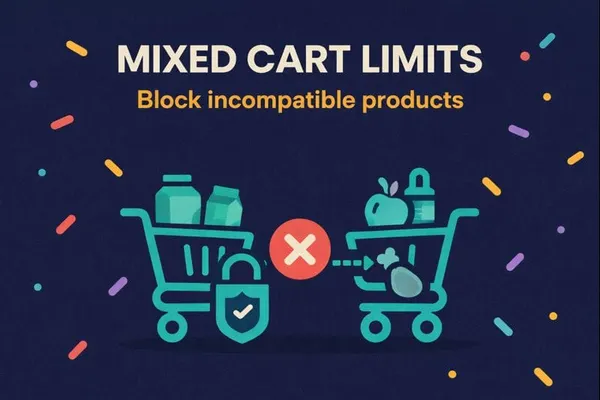
If your store sells anything that ships differently from the rest of your catalog (frozen food, dry ice, batteries, aerosols, oversized fragile items), the fix is a checkout rule that blocks those products from sharing a cart with regular inventory. Shopify has no native setting for this, but a tag or product based rule in a Shopify order limits app can enforce it in a few minutes, and it works without Shopify Plus.
Picture a store that sells soy candles next to a line of cold-process soap bars packed with dry ice for summer shipping. A customer adds both to one cart and the order goes out in a single box. The candles arrive fine. The soap, packed for a one-day cold chain, sits in a warehouse queue for two days first and shows up partially melted.
Any store that carries more than one type of product runs into some version of this. Perishables need a cold chain that ends fast. Hazardous materials need specific packaging, labeling, and sometimes a different carrier account than your standard parcels. Fragile or oversized items need padding and box sizes that don’t play well with a box full of smaller items. Put any of these in the same shipment as regular stock, and you’re stuck choosing between a packing compromise that risks damage, or manually splitting the order after the fact and eating a second shipping label.
What does a mixed shipment actually cost?
The damage isn’t always visible right away. A melted candle or a bruised peach is an easy return. Mixed hazmat shipments carry a different kind of risk: carriers that detect undeclared hazardous materials in a parcel can hold, return, or fine the shipment, and the cost of getting that wrong is much higher than a refund.
Fragile and oversized items create a quieter cost. When a large, awkward item ships in the same box as small ones, your packing team either builds a custom box every time or uses a bigger box with more void fill, which raises your dimensional weight and your shipping bill. Multiply that by every mixed order, and it adds up over a month.
The goal is to match how an order ships to what’s actually in the box, before the box gets packed.
What Shopify does on its own
Shopify’s cart and checkout don’t have a setting for “these two products can’t be ordered together.” The platform assumes any combination of items in stock is fine to combine into one order, because for most stores, it is.
A few merchants try to handle this with storefront warnings, a note in the product description asking customers to order separately, or a manual review step before fulfillment. Warnings get skipped. Manual review doesn’t scale once order volume picks up, and it means someone has to catch the problem after the customer has already paid for one shipping charge covering what needs to be two.
The fix: a mixed cart rule keyed to how products ship
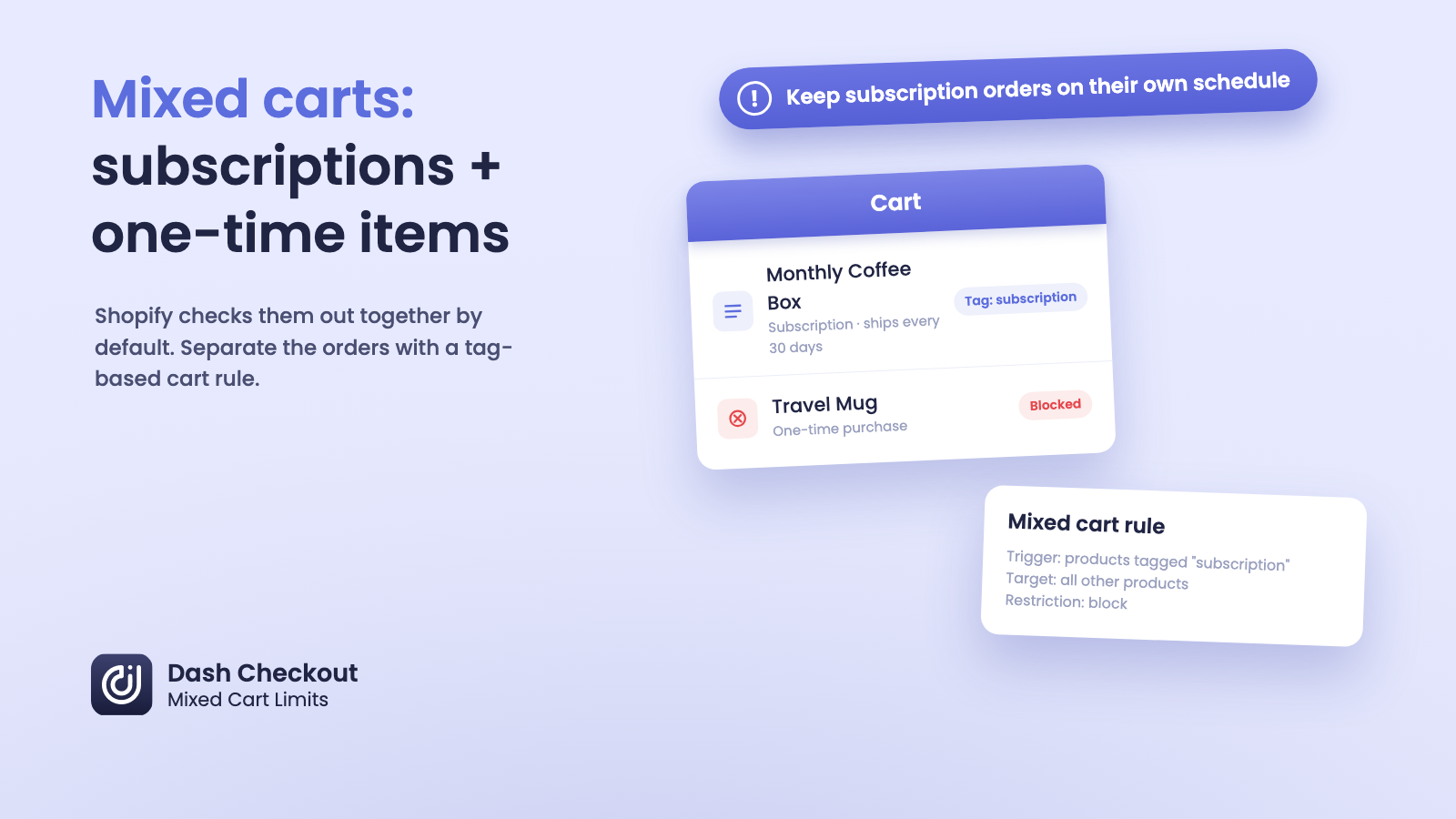
This is the same trigger and target system we cover in how to control which products can be bought together on Shopify, applied specifically to shipping categories. In DC Order Limits, it’s called a mixed cart limit.
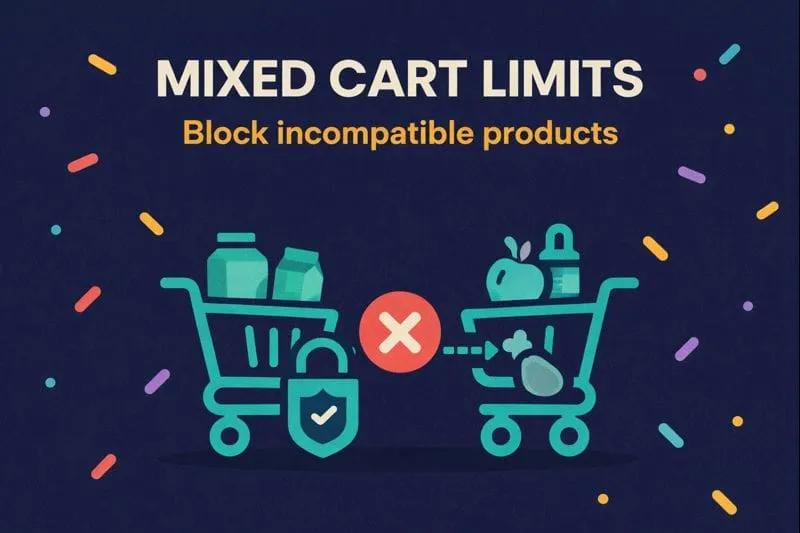
Here’s the setup, step by step.
- Tag every product that needs its own shipment. Use one tag per shipping category, something like
cold-chain,hazmat, orfragile-freight. If a product needs dry ice, special labeling, or custom packing, it gets the tag. - In DC Order Limits, go to Order Limits, then choose Mixed Cart Limits.
- Under Trigger products, select “Products with specific tags” and enter your shipping category tag.
- Under Target products, select “All products.”
- Under restriction type, select “Block target products.”
- Save the rule, then repeat for each separate shipping category you carry.
Trigger products are automatically excluded from the target list, so a cart with only cold-chain items sails through, and a cart with only regular stock never activates the rule. Only the mix between categories gets stopped. If you carry three shipping categories that all need to stay apart from each other and from regular stock, set up one rule per category with the same “all products” target, and each one blocks its own category from mixing with everything else.
What the customer sees
When a customer tries to check out with a tagged item and a regular item together, checkout is blocked and a message explains why. The wording comes from the app’s message template, which you can edit. One template covers all of your mixed cart rules, and it supports {trigger_title} and {target_title} placeholders that insert the actual product names, so write it to work for every shipping category you carry rather than just one.
A clearer version does the explaining for you:
{trigger_title} needs its own shipment. Please complete this order on its own, then place a separate order for your other items.
Customers who’ve bought meal kits, supplement subscriptions, or specialty foods online before already recognize this pattern. A specific message turns a blocked checkout into a reasonable explanation instead of a dead end.
Where the rule runs
You can set the rule to enforce in the cart, at checkout, or both. Running it in both places catches the conflict while the customer is still shopping, rather than surprising them at the payment step. Either way, enforcement happens through Shopify’s own checkout validation, so it works with any theme and doesn’t depend on storefront JavaScript.
What this setup does not do
A few honest limits worth knowing before you set this up:
- It does not automatically split an order into two shipments. The customer places a second order themselves, after the rule blocks the mix and the message tells them what to do.
- It targets products by tag, specific product, or specific variant. There’s no collection or vendor based targeting for mixed cart rules, so if your shipping categories don’t map cleanly to tags today, you’ll want to add them first.
- It depends on tag accuracy. A new fragile product that doesn’t get the tag won’t trigger the rule, so it’s worth adding the tag to your product creation checklist if you add shipping-sensitive products regularly.
Beyond perishables and hazmat
The same pattern handles other shipping mismatches: separating wholesale cases from retail singles, or keeping oversized freight items out of carts with small parcels. If something in your catalog needs a different box, a different label, or a different carrier than the rest of your store, a mixed cart rule lets you draw that line before the order is placed instead of catching it in the warehouse.
Frequently asked questions
Can Shopify natively stop hazmat or perishable items from shipping with regular orders?
No. Shopify’s cart and checkout treat any in-stock combination as valid for one order. Blocking specific combinations requires a checkout rule from an app like DC Order Limits.
Do I need Shopify Plus for this?
No. Mixed cart limits run through Shopify’s standard checkout validation and work on any Shopify plan, not just Plus.
Does the rule check the cart, checkout, or both?
You choose. The rule can run in the cart, at checkout, or in both places, and enforcement happens on Shopify’s side either way.
Can I set this up for more than one shipping category, like hazmat and fragile at the same time?
Yes. Tag each category separately and create one mixed cart rule per tag, each targeting “all products” with a block restriction. Each rule keeps its own category away from everything else, including the other tagged categories, so every category ships on its own. A rule only ignores its own trigger products, which is why a cart with nothing but cold-chain items still checks out fine.
What if a product needs special shipping but doesn’t have a tag yet?
The rule only catches what’s tagged. Add the shipping category tag to the product and the rule picks it up the next time that cart is evaluated.
Can I write a custom message explaining why the items can’t be combined?
Yes. You can edit the block message template in the app. One template is shared across all of your mixed cart rules, and placeholders like {trigger_title} insert the actual product name, so write wording that fits every shipping category you carry.
Try it on your store
Mixed cart limits are part of the Pro plan in DC Order Limits. Install it from the Shopify App Store, tag your perishable, hazmat, or fragile products by shipping category, and set up a block rule for each one using the steps above.
If your catalog has an unusual mix of shipping requirements, write to us through the app. We read every message and can help you map your categories to the right rule setup. For other ways order limits can tighten up your checkout, see our complete guide to order limits.