· Zayd Khan · order-limits · 7 min read
How to limit purchases to 1 per customer on Shopify (tracked across orders)
Most limit apps only cap quantity per cart, so customers just place a second order. Here is how to enforce a true 1 per customer limit that tracks purchase history across orders.
Every week, merchants post the same question in Shopify forums: “How do I limit a product to one per customer?” The scenario is always similar. A store is running a limited release, offering a promotional item, or selling something in short supply. They need to ensure each customer can only buy one, ever, not just one per order.
The frustration is understandable. This seems like basic functionality that should exist out of the box. But Shopify’s native tools don’t handle it well, and the workarounds are messy.
Why merchants need one-per-customer limits
The use cases are everywhere.
Limited product drops. You have 500 units of a new release. Without limits, a handful of resellers can buy out your entire inventory in minutes. The customers you want to reach never get a chance. See our guide on limited drop purchase limits for drop-specific strategies.
Free gifts and samples. You’re offering a free sample with first purchases, or running a gift-with-purchase promotion. Customers quickly figure out they can claim it repeatedly.
Fairness during high demand. Product launches, influencer promotions, flash sales. Any time demand exceeds supply, you need a way to distribute inventory fairly.
Anti-reseller protection. Some buyers create multiple accounts or place repeat orders specifically to resell your products at a markup. One-per-customer limits make this harder. Learn more about using order limits to combat fraud.
What Shopify offers natively
Shopify has a few built-in tools, but none of them solve this problem completely.
Cart quantity limits. Shopify’s add-to-cart limit setting lets you set a maximum quantity per product in the cart. The problem? This only applies to a single order. A customer can hit your limit, check out, and immediately place another order. The limit resets every time.
Shopify Scripts (Plus only). If you have Shopify Plus, you can write custom scripts to modify checkout behavior. But Scripts can only see the current cart. They have no visibility into a customer’s order history, so they cannot enforce lifetime purchase limits.
Manual monitoring. Some merchants try to catch repeat purchases by manually reviewing orders. This doesn’t scale, and by the time you notice, the order has already been placed.
Draft orders only. A few stores have tried making products “request only” and manually creating draft orders after verifying purchase history. This creates friction for customers and adds significant work for your team.
None of these approaches track what a customer has purchased across their entire history with your store.
The key difference: per checkout vs per customer
This is where most merchants get stuck. Shopify’s native limits are per checkout, not per customer.
Per checkout means the limit only sees the current transaction. A customer adds 2 units, sees they can only add 1, adjusts their cart, and checks out. Done. But tomorrow, or even five minutes later, they can place another order and buy again. The limit has no memory.
Per customer means the limit tracks purchase history across all orders. Once a customer has bought one unit, they cannot buy another, period. This is what merchants actually need when they say “limit one per customer.”
If you’re seeing customers bypass your limits by placing multiple orders, you’re using per-checkout limits. Switching to per-customer limits solves this.
The solution: customer purchase limits
Customer purchase limits work differently. Instead of looking only at the current cart, they track each customer’s purchase history across all their orders. When a customer tries to buy a product, the system checks whether they have already purchased it before.
This is what merchants need when they ask for “one per customer” functionality.
DC Order Limits provides this through its Customer Limits feature. You set the maximum quantity a customer can purchase of a product, variant, or group of products, and the app tracks their history automatically.
How to set up a one-per-customer limit
Setting this up takes just a few minutes.
Step 1: Create a customer limit rule. In DC Order Limits, go to Customer Limits and create a new rule. Choose quantity as your limit type.
Step 2: Set the maximum to 1. This is your lifetime cap. Once a customer has purchased one unit, they cannot purchase more.
Step 3: Choose which products it applies to. You can apply the limit to all products, products with a specific tag, individual product IDs, or specific variants. For a limited release, you might tag those products and apply the rule to that tag.
Step 4: Set customer targeting. Decide who the rule applies to. You can target all logged-in customers, customers with specific tags, or exclude VIPs and wholesale accounts using exclusion rules.
Step 5: Handle guest checkout. Decide whether to allow guest checkout for limited products. Requiring login gives you the most reliable tracking, since guest orders cannot be linked to a customer account.
Step 6: Test with a test account. Place an order with a test customer account, then try to purchase again. You should see the limit enforced.
What happens when a customer hits the limit
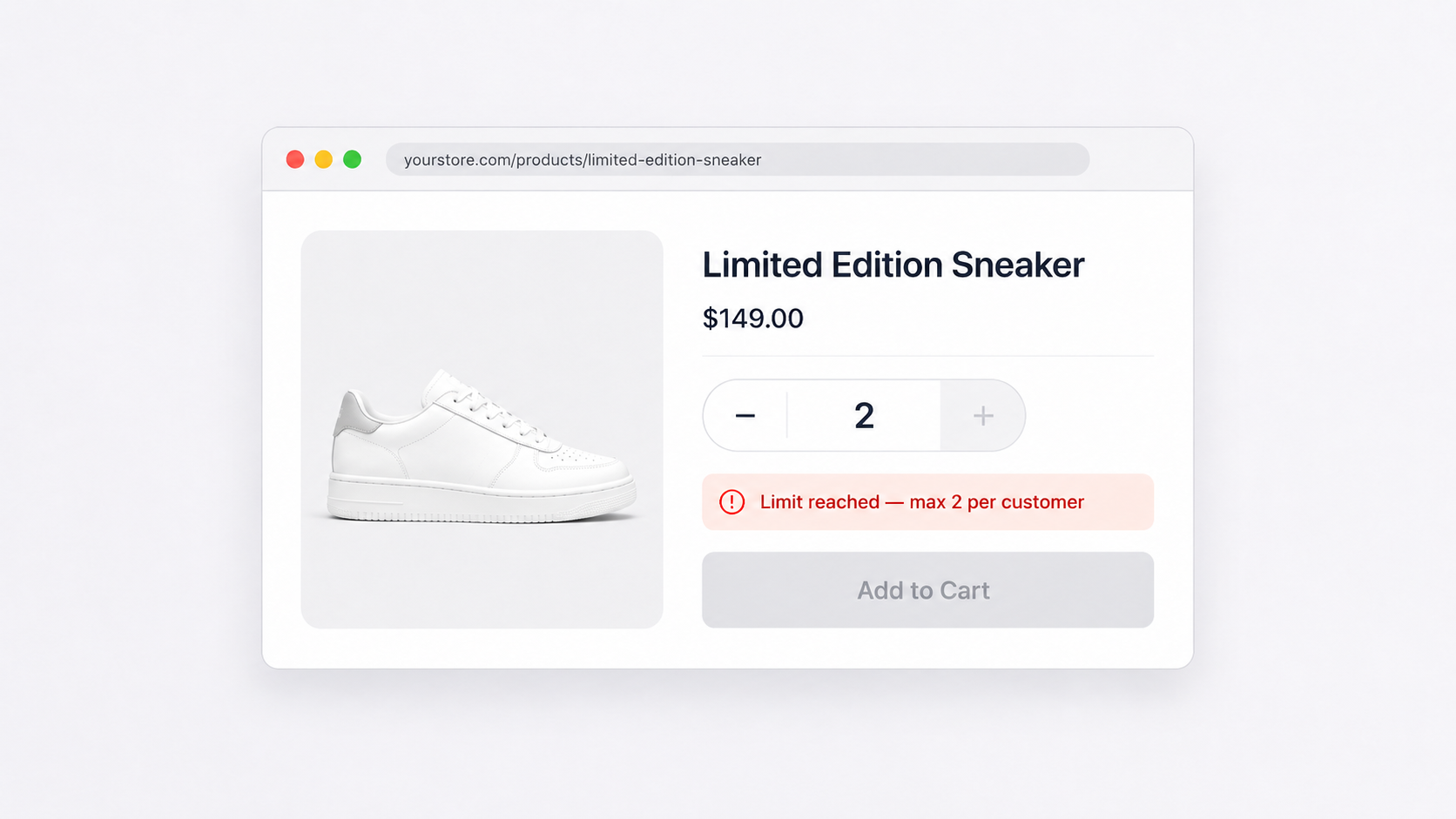
When a customer who has already purchased tries to add the product again, the app blocks them and displays an error message. You can customize this message to explain the limit clearly.
A good message might say: “This product is limited to one per customer. Our records show you have already purchased this item.”
Clear messaging prevents confusion and reduces support requests.
Handling edge cases
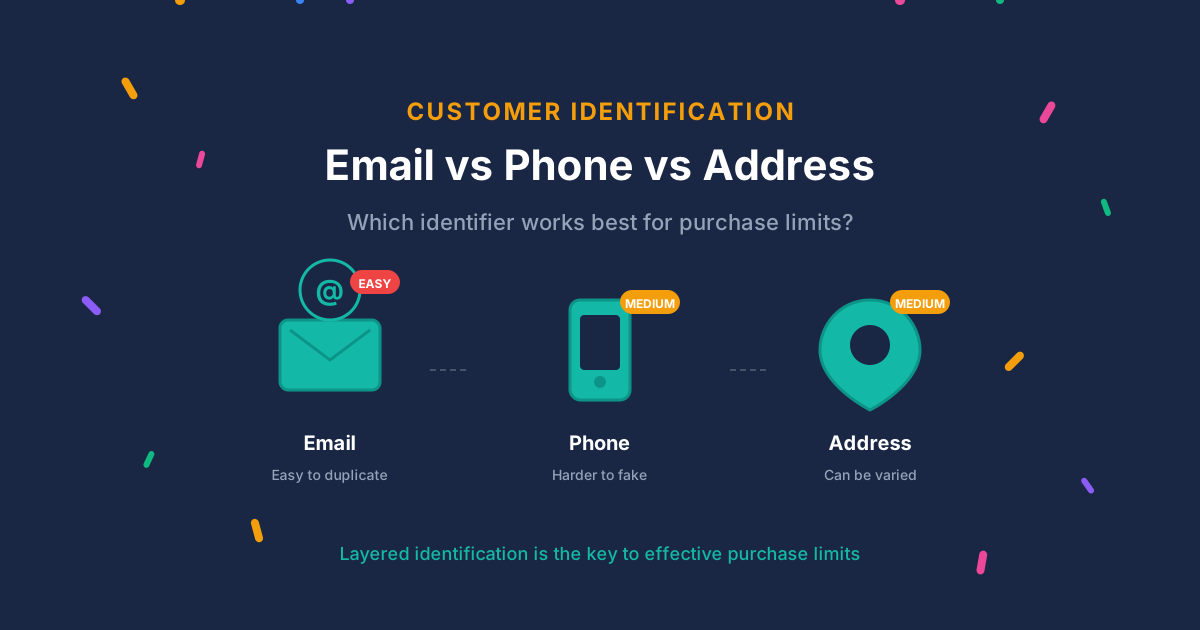
Customers with multiple accounts. This is the trickiest scenario. If a customer creates a new account with a different email, the app sees them as a new customer. There is no perfect solution to this, but requiring login and tracking by customer account is far better than no tracking at all. You can also use post-purchase order review if you suspect abuse.
Resetting limits. Sometimes you want to reset limits, for example, when running a new limited release. You can clear purchase history through the usage history dashboard or automate resets with Shopify Flow.
Excluding certain customers. VIPs, employees, or wholesale accounts might need exemptions. Use exclusion rules to let specific customer tags bypass the limit.
A practical example
A sneaker store drops 300 pairs of a limited collaboration. They want each customer to have a fair shot, so they set a customer limit of 1 pair per customer.
On drop day, the first wave of customers places orders. When resellers try to check out again (same account or new order), they see a message: “You have already purchased this item. Limit one per customer.”
The drop sells out over three hours instead of three minutes. More real customers get pairs. The reseller forums complain about the limits, which is exactly the point. For more on the psychology behind this, see how purchase limits drive customer behavior.
Frequently asked questions
What’s the difference between per-checkout and per-customer limits?
Per-checkout limits only see the current cart. They reset after each order, so customers can buy again. Per-customer limits track purchase history across all orders and enforce lifetime caps.
Can I set monthly or weekly limits instead of lifetime?
Yes. You can combine customer limits with Shopify Flow to reset limits on a schedule. See our guide on setting monthly purchase limits per customer.
Do limits work for guest checkout?
Yes. Customer limits work for both logged-in customers and guests. The app tracks purchase history by email address, so limits are enforced when customers enter their email at checkout. No login required. The only limitation is that different email addresses create separate tracking, so a customer using multiple emails would be tracked separately.
Can customers bypass limits by creating new accounts?
New accounts appear as new customers. There’s no perfect solution, but requiring login and tracking by customer account is far more effective than per-order limits. Most casual repeat buyers won’t create new accounts.
How do I exclude VIP customers from limits?
Use exclusion rules to let customers with specific tags bypass limits.
Getting started
If you’re running limited releases, promotional items, or anything where fairness matters, one-per-customer limits are essential. Standard cart limits don’t solve the problem because they reset with each order.
DC Order Limits tracks purchase history automatically through its lifetime purchase limits feature. Set up your first rule, test it, and you’ll wonder how you managed without it.
Install DC Order Limits to start enforcing real per-customer limits.