· Arbab Khan · checkout · 10 min read
How to hide, rename, or reorder payment methods in Shopify
Shopify gives merchants limited control over which payment options appear at checkout. Here is how to hide methods for specific orders, rename confusing labels, and reorder options so customers see the right choice first.
A customer places a $800 order and selects Cash on Delivery. Two days later, your courier attempts delivery—and the customer refuses to pay. Now you’re out the shipping cost, the product is in transit limbo, and your COD refusal rate just ticked up again.
This happens because Shopify shows every enabled payment method to every customer. There’s no native way to hide COD for large orders, block it for customers who’ve refused before, or even add a note explaining your handling fee.
Payment method presentation matters. When the wrong options appear—or appear in the wrong order—customers make choices that create problems for your business.
About this guide: Dash Checkout builds checkout customization tools for Shopify. This guide covers both Shopify’s native limitations and how Payment Rules in DC Order Limits solves them.
The Shopify Plus requirement
Before diving in, here’s the critical constraint: Shopify restricts payment method customization to Plus merchants for most actions.
| Action | Shopify Plus | Standard Plans |
|---|---|---|
| Hide payment methods | Yes | No |
| Reorder payment methods | Yes | No |
| Rename payment methods | Yes | Yes |
If you’re not on Shopify Plus, renaming is your only option—but it’s more useful than it sounds. Renaming “Cash on Delivery” to “Cash on Delivery (+$5 handling fee)” sets expectations before customers select it.
For hiding and reordering, you’ll need Shopify Plus. The rest of this guide assumes you have it, but the rename sections apply to everyone.
Why payment method control matters
The payment step is where checkout abandonment spikes. Unexpected options, confusing labels, and poor ordering all contribute.
High-risk payment methods show to everyone. COD appears for first-time customers, guest checkouts, and high-value orders—all scenarios with elevated refusal risk. Every refused delivery costs money.
Payment labels confuse customers. “Bank Deposit” doesn’t tell customers that their order ships after the transfer clears. “Shopify Payments” means nothing to a shopper—they just want to pay by card.
Irrelevant options clutter the list. Buy Now Pay Later options appear for orders above approval limits. Express checkout buttons show for pre-orders where customers need to see terms first.
Method ordering steers behavior. Shopify orders payment methods by your admin configuration, not by what’s best for each order. Your preferred low-fee gateway might appear below a high-fee alternative.
What Shopify lets you control natively
Shopify’s payment settings handle gateway configuration well. Conditional presentation is limited.
You can set up:
- Multiple payment gateways and methods
- Express checkout options (Shop Pay, Apple Pay, Google Pay)
- Manual payment methods (COD, bank transfer, invoice)
- Payment capture settings (automatic vs. manual)
You cannot natively:
- Hide a payment method based on cart total
- Hide a payment method based on customer tags or login status
- Rename a payment method’s display label
- Change the order in which methods appear
- Show or hide methods based on products in cart
- Schedule payment methods to appear only on certain dates
For stores with one or two payment options, native Shopify works. But once you have COD, BNPL providers, multiple gateways, or B2B customers, you need more control.
How Payment Rules solves this
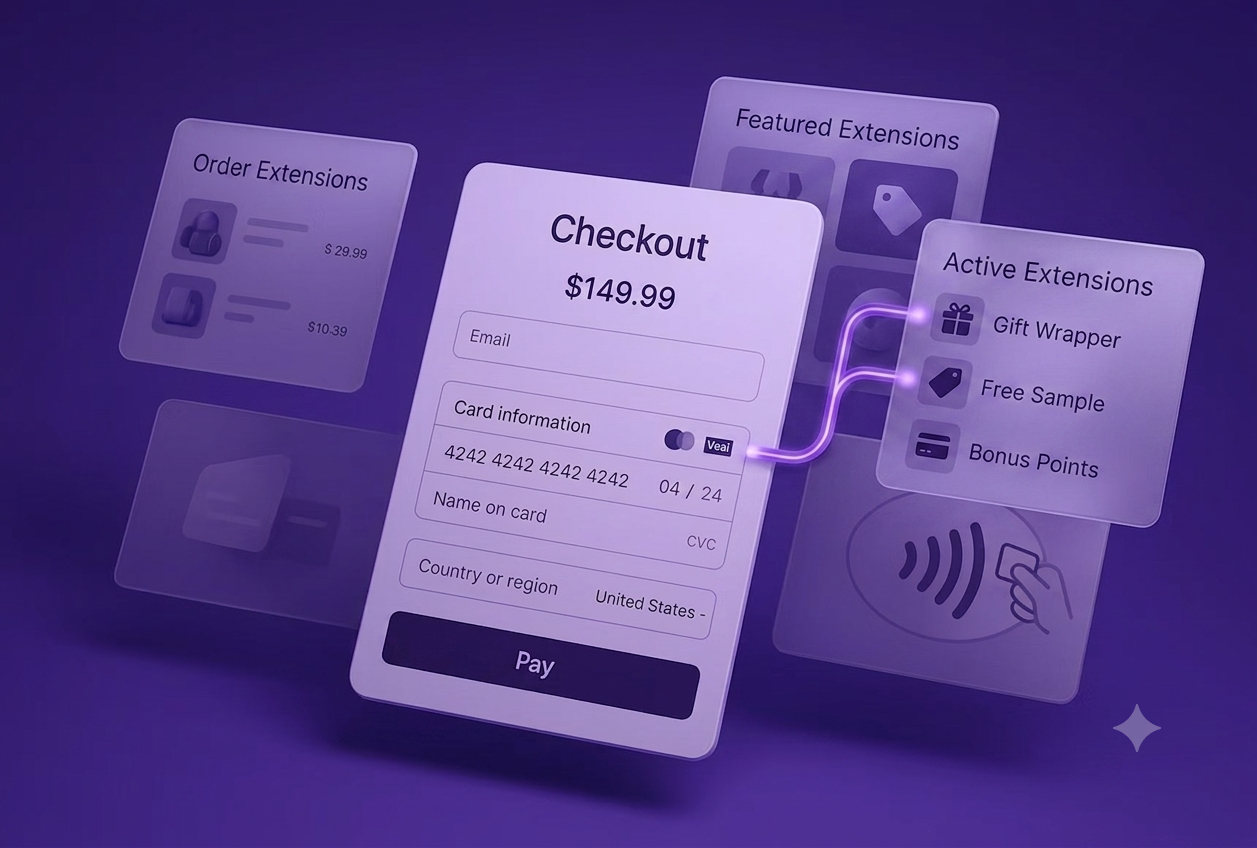
Payment Rules in DC Order Limits gives you checkout-level control over payment method visibility and presentation. It works through Shopify’s checkout extensibility system, modifying how payment options appear without touching your actual gateway configurations.
The core capabilities:
Hide payment methods. Remove options from checkout based on cart total, customer tags, customer login status, products in cart, shipping address, or scheduled dates. The payment method still exists in Shopify—it just doesn’t show for that checkout.
Rename payment methods. Replace confusing gateway labels with clear names. “Bank Deposit” becomes “Bank Transfer (ships once payment clears).” “Cash on Delivery” becomes “Pay at Delivery (+$5 handling fee).”
Reorder payment methods. Control which option appears first instead of relying on your admin’s default ordering. Put your preferred gateway at the top to steer customers toward lower-fee options.
Rules apply at checkout in real-time based on the current cart, customer, and conditions you set.
Hiding payment methods for specific scenarios
The most common use case: preventing payment options from appearing when they create risk or confusion.
Hide COD for large orders
Cash on Delivery refusals hurt most on high-value orders. A refused $50 order is annoying. A refused $500 order is expensive—shipping both ways, restocking, potential damage.
The rule: Hide COD when cart total exceeds $500 (or your threshold for acceptable risk).
Small orders still show COD. Large orders only show prepaid options, eliminating refusal risk entirely.
Hide COD for high-risk customers
Some customers have a pattern: they order COD and refuse at delivery. Shopify lets you tag these customers, but doesn’t let you act on those tags at checkout.
The rule: Hide COD when the customer has a “high-risk” or “cod-blocked” tag.
Tagged customers see prepaid options only. Everyone else sees COD as normal. You control the tag assignment in Shopify admin or through your order management workflow.
Hide COD for guest checkout
Guest checkout makes COD fraud easier—no account to track, no purchase history to reference. Requiring an account for COD reduces fake orders.
The rule: Hide COD when the customer is not logged in.
Logged-in customers see COD. Guests see prepaid options and can create an account if they want COD. This simple filter catches many problematic orders.
Hide COD for specific regions
COD refusal rates vary by geography. Urban areas with reliable courier networks see lower refusals than remote regions where delivery attempts are expensive.
The rule: Hide COD for specific zip codes or postal codes with high refusal rates.
Customers in problem areas see prepaid options. Customers in reliable delivery zones see COD. You can use wildcards (like “100*”) to match ranges.
Hide Buy Now Pay Later above approval limits
Klarna, Afterpay, Affirm, and Sezzle have approval limits—typically $1,000-2,000 depending on the customer. Showing BNPL for a $3,000 order leads to declined applications and frustrated customers.
The rule: Hide BNPL options when cart total exceeds $1,000 (or your typical approval ceiling).
Orders below the limit see BNPL. Large orders see card and alternative payment options that won’t get declined.
Hide BNPL for gift cards
Most BNPL providers prohibit gift card purchases in their terms of service. Customers who try get declined, then contact your support.
The rule: Hide BNPL options when the cart contains products tagged “gift-card.”
Gift card orders show only allowed payment methods. Regular product orders show all options.
Hide express checkout for pre-orders
Shop Pay, Apple Pay, and Google Pay let customers pay with one tap—which means they skip your cart page, product descriptions, and pre-order terms. For products that won’t ship immediately, this creates “where’s my order?” support tickets.
The rule: Hide express checkout options when the cart contains products tagged “preorder.”
Pre-order customers go through the full checkout flow and see your pre-order terms. Standard product customers still get one-tap checkout.
Wholesale customers pay by invoice
B2B customers often pay by bank transfer, net-30 terms, or manual invoicing—not consumer payment methods. Showing credit card options to wholesale accounts creates confusion about your actual payment terms.
The rule: Hide consumer payment methods (Shopify Payments, PayPal) when the customer has a “wholesale” or “b2b” tag.
Tagged B2B customers see only your manual payment methods. Retail customers see your normal payment options.
Renaming confusing payment labels
Payment method names make sense to payment processors, not shoppers. Renaming brings clarity—and works on all Shopify plans.
Before → After examples:
| Gateway Label | Customer-Friendly Name |
|---|---|
| Cash on Delivery | Pay at Delivery (+$5 handling fee) |
| Bank Deposit | Bank Transfer (ships after payment clears, 1-2 days) |
| Shopify Payments | Credit or Debit Card |
| Manual Payment | Invoice (Net 30) |
| Shop Pay Installments | Pay in 4 Interest-Free Installments |
In DC Order Limits, you create rename rules that match the original payment label and replace it with your preferred text. The underlying payment method stays the same—only the display name changes.
Setting expectations with rename
Rename is especially powerful for payment methods with non-obvious behavior:
COD with fees: Rename to show your handling surcharge. Customers who don’t want to pay the fee choose another method—before checkout completes.
Bank transfer timing: Rename to explain that orders ship after payment clears. Fewer “where’s my order?” emails from bank transfer customers.
Manual B2B methods: Rename “Manual Payment” to “Invoice (Net 30)” or “Purchase Order” so wholesale customers understand the process.
Reordering payment options
Shopify orders payment methods based on your admin configuration. This isn’t always what’s best for your business or customers.
Scenarios where order matters:
Promoting lower-fee payment methods. Your card gateway charges 2.9% but PayPal charges 3.5%. Moving your card option to the top steers customers toward the lower-fee choice.
Discouraging COD without hiding it. Moving COD to the bottom keeps it available but makes prepaid methods more prominent. Your COD share drops without eliminating the option.
Highlighting preferred B2B methods. For wholesale customers, put invoice or bank transfer at the top so they see your expected payment flow first.
Regional optimization. In markets where certain payment methods are more trusted, reorder to match local preferences.
Payment Rules lets you set explicit ordering, or move specific methods to the top or bottom based on conditions.
Running rules during specific dates
Some payment scenarios only apply sometimes.
Holiday COD restrictions. During peak season, hide COD entirely when refusal rates spike and courier networks are strained.
Promotional payment options. Show special financing or installment plans only during Black Friday or other sale events.
Seasonal BNPL limits. Lower your BNPL hiding threshold during holiday season when approval rates drop due to high applicant volume.
Date-based rules let you schedule when payment methods appear or disappear without touching your settings manually.
Setting up your first Payment Rule
In DC Order Limits:
- Navigate to Payment Rules in the app
- Click Create Rule
- Choose your action: Hide, Rename, or Reorder
- Enter which payment method(s) the rule applies to (partial matching works—“cod” matches “Cash on Delivery”)
- Add conditions: cart value, customer tags, login status, product tags, location, dates
- Set the priority if you have multiple rules
- Save and activate
Rules process in priority order. If multiple rules affect the same payment method, higher priority wins.
Test rules by going through checkout with different cart configurations. Verify that methods appear, disappear, and rename as expected.
Common rule combinations
Most merchants use multiple rules together.
The COD protection setup:
- Hide COD for cart totals over $500
- Hide COD for customers tagged “high-risk”
- Hide COD for guest checkout
- Rename COD to show handling fee
- Move COD to bottom of payment list
The BNPL optimization setup:
- Hide BNPL options for cart totals over $1,000
- Hide BNPL for products tagged “gift-card”
- Rename BNPL to clarify installment terms
The B2B setup:
- Hide consumer payment methods for “wholesale” tagged customers
- Rename manual payment to “Invoice (Net 30)”
- Move invoice payment to top for B2B customers
The pre-order setup:
- Hide express checkout for products tagged “preorder”
- Rename standard payment to clarify pre-order shipping timeline
Practical considerations
Shopify Plus is required for hiding and reordering. If you’re on a standard plan, focus on rename rules—they’re more powerful than they seem. A well-named payment method sets expectations and reduces support tickets.
Test across customer segments. Rules based on customer tags only apply to logged-in customers. Guest checkout shows different results.
Don’t hide all payment methods. Always leave at least one option visible. If your rules accidentally hide everything, checkout breaks.
Consider mobile. Fewer payment options often works better on mobile where space is limited. Hiding irrelevant methods improves mobile conversion.
Document your rules. As you add more rules, keep notes on what each one does and why. Future-you will appreciate this when troubleshooting.
Monitor COD refusal rates. If you implement COD restrictions, track whether your refusal rate improves. Adjust thresholds based on results.
Getting started
If customers select payment methods that create problems—COD refusals, BNPL declines, confused support tickets about payment timing—payment method control will help.
Start with rename rules if you’re not on Shopify Plus. Clear labels like “Pay at Delivery (+$5 fee)” or “Bank Transfer (ships after payment clears)” reduce confusion immediately.
If you’re on Plus, add hiding rules for your most obvious problem cases: COD for large orders, BNPL above approval limits, express checkout for pre-orders. Reordering comes last once you understand customer behavior.
DC Order Limits includes Payment Rules alongside Shipping Rules, quantity limits, and other checkout controls. If you’re already using the app, Payment Rules is available in your dashboard now.
Related guides: