· Arbab Khan · tutorials · 6 min read
How to enforce bundle quantities for Shopify subscription boxes
Learn how to enforce "pick 5" or "choose 12" quantities for subscription boxes on Shopify using allowed quantity rules and clear error messages.
You’ve built a beautiful subscription box experience. Customers can pick their favorite snacks, choose their candle scents, or curate their own beauty bundle.
Then someone tries to check out with 7 items in a “pick 5” box. Or 3 items in a “choose 12” subscription. Your carefully planned box sizes break down because there’s no way to enforce the count.
This happens more than you’d think. A candle subscription merchant told us they were manually refunding orders every week because customers didn’t realize the box size was fixed. A snack box store had to email buyers after checkout to adjust their selections. It works, but it creates extra steps for everyone.
Why fixed quantities matter for subscription boxes
Subscription boxes work because of consistency. You know exactly how many items fit in your packaging. Your fulfillment team knows what to expect. Your pricing is built around specific item counts.
When customers can add any quantity they want, a few things happen:
- Orders come in with the wrong number of items
- You have to contact customers after checkout to fix it
- Packaging doesn’t match what was ordered
- Fulfillment takes longer because every order is different
The solution is setting allowed quantities at checkout. Instead of letting customers add any number, you restrict purchases to specific counts like 5, 12, or whatever your box sizes are.
How allowed quantities work
Allowed quantities let you define exactly which quantities customers can purchase. You’re not setting a range (like “between 5 and 10”). You’re listing specific numbers.
For a “pick 5” snack box, you set allowed quantities to just 5. For a candle subscription with small, medium, and large options, you might allow 3, 6, or 12.
Here’s how it works in practice:
- You create a product for your build-your-own box
- Set allowed quantities to match your box sizes
- Add a clear error message explaining the options
- When customers add the wrong amount, they see your message before checkout
The validation happens in real time. Customers know immediately if they’ve added too many or too few items.
Setting up a “pick 5” subscription box
Let’s walk through a common scenario: a beauty box where customers choose 5 products.
Step 1: Set the allowed quantities
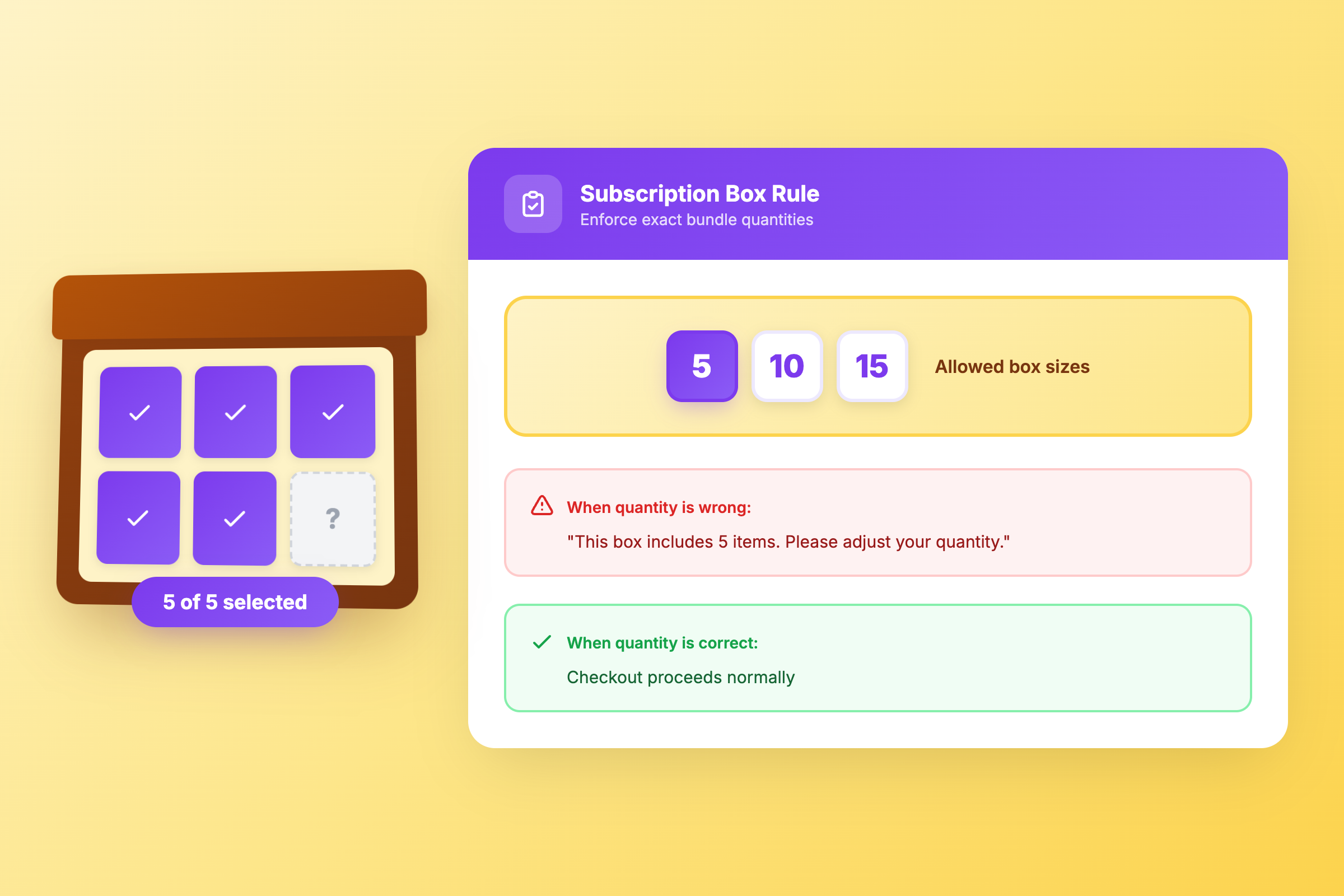
In your order limit rule, choose the “Allowed Quantities” option and enter: 5
That’s it. Now customers can only purchase this product in quantities of 5.
Step 2: Write a helpful error message
The default error is functional but generic. A better approach is explaining why the limit exists:
“This box includes 5 items. Please adjust your quantity to continue.”
Or for subscriptions with multiple size options:
“Choose your box size: 5 items ($25), 10 items ($45), or 15 items ($60).”
The message shows up when someone tries to add the wrong quantity. It tells them what to do next instead of just saying “no.”
Step 3: Apply it to the right products
If you’re selling build-your-own boxes alongside regular products, use product tags to target just the box items.
Tag your box products with something like “byob” or “subscription-box”, then apply the rule to products with that tag. Your regular catalog won’t be affected.
Adding variety requirements to your box
Some subscription boxes have an extra requirement: customers need to choose different variants, not just the right count.
For example, a coffee subscription might require “choose 3 different roasts” instead of allowing someone to pick the same blend three times.
To achieve this, you would create two separate rules:
- Rule 1: Set allowed quantities to 3 (enforces the exact box size)
- Rule 2: Set maximum quantity per variant to 1 (prevents duplicates)
With both rules active, customers must choose exactly 3 items, and each one has to be different. This works well for subscription boxes where variety is part of the value proposition.
Common subscription box scenarios
Snack box store (pick 12 model)
Consider a snack subscription offering small and large boxes. Small includes 6 items, large includes 12. Setting allowed quantities to 6, 12 with an error message explaining both options keeps orders clean.
Without quantity restrictions, orders often come in with wrong item counts, requiring follow-up emails to fix. After setting up allowed quantities, these errors typically stop.
Beauty box with sample sizes
A beauty subscription might let customers build their own box from sample-size products, with boxes priced by item count rather than product value.
To enforce tiers (5, 10, or 15 items), set allowed quantities to 5, 10, 15. An error message like “Select your box size: 5 samples ($12), 10 samples ($20), or 15 samples ($28)” guides customers to valid options.
Candle subscription with seasonal limits
Seasonal subscription boxes often change size throughout the year. Fall boxes might include 4 candles while winter boxes include 6.
You can update your allowed quantities each quarter to match the current box size. The same product works year-round with different quantity rules as seasons change.
How DC Order Limits helps
DC Order Limits’ allowed quantities feature lets you enforce fixed box sizes without custom development. You set the specific quantities customers can purchase, write your own error messages, and apply rules to individual products or variants.
The validation happens before checkout, so customers know right away if they need to adjust their selection. And because it works with Shopify’s native cart, it doesn’t break other apps or themes.
For subscription boxes with multiple size options, you can list all your allowed quantities in one rule. A customer trying to add 8 items will see your message explaining that boxes come in 5, 10, or 15 item configurations.
Testing your box quantity rules
Before you launch, test the customer experience:
- Add the wrong quantity to your cart (like 7 items for a “pick 5” box)
- Try to proceed to checkout
- Check that your error message appears and makes sense
- Adjust to an allowed quantity and verify checkout works
Test on mobile too. Error messages need to be clear on smaller screens where customers might not see all the context.
If you offer multiple box sizes, test each allowed quantity to make sure all options work correctly.
Next steps
If you’re running a subscription box or build-your-own bundle on Shopify, allowed quantities can remove the manual work of fixing wrong item counts.
You can try DC Order Limits free with a 3-day trial. Set up your allowed quantities, write your error messages, and see if it fits how your subscription works.
The goal is letting customers build their perfect box while making sure every order matches your packaging and pricing. Allowed quantities handle the enforcement part so you can focus on curating great products.