· Dash Checkout · order-limits · 5 min read
How to set monthly purchase limits per customer on Shopify
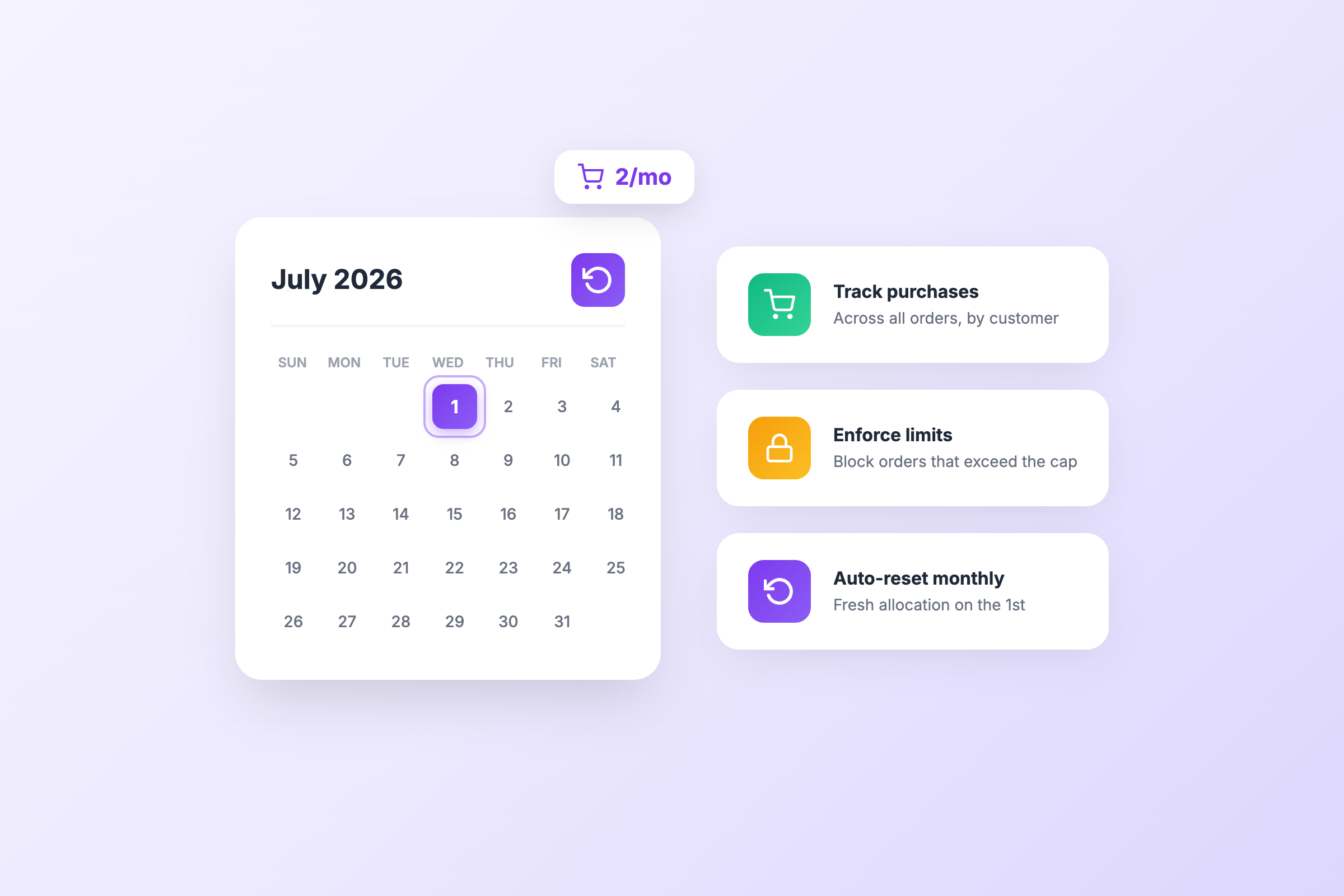
Standard per-order limits reset after every checkout. Monthly limits track what each customer buys and reset automatically at the start of each month.
“Can I limit orders of a product to 10 items per person per month, with the limit resetting each month?”
This question comes up often in the Shopify Community. A subscription box merchant told us their bestselling add-ons were going to the same few customers each month. They needed limits that tracked across orders, not just within a single checkout.
Standard Shopify quantity limits only see the current checkout. A customer can hit your max, complete the order, and buy again the next day. Monthly limits solve this by tracking purchases across all orders and resetting on a schedule you control.
Here’s how to set it up using DC Order Limits and Shopify Flow.
What you’ll need
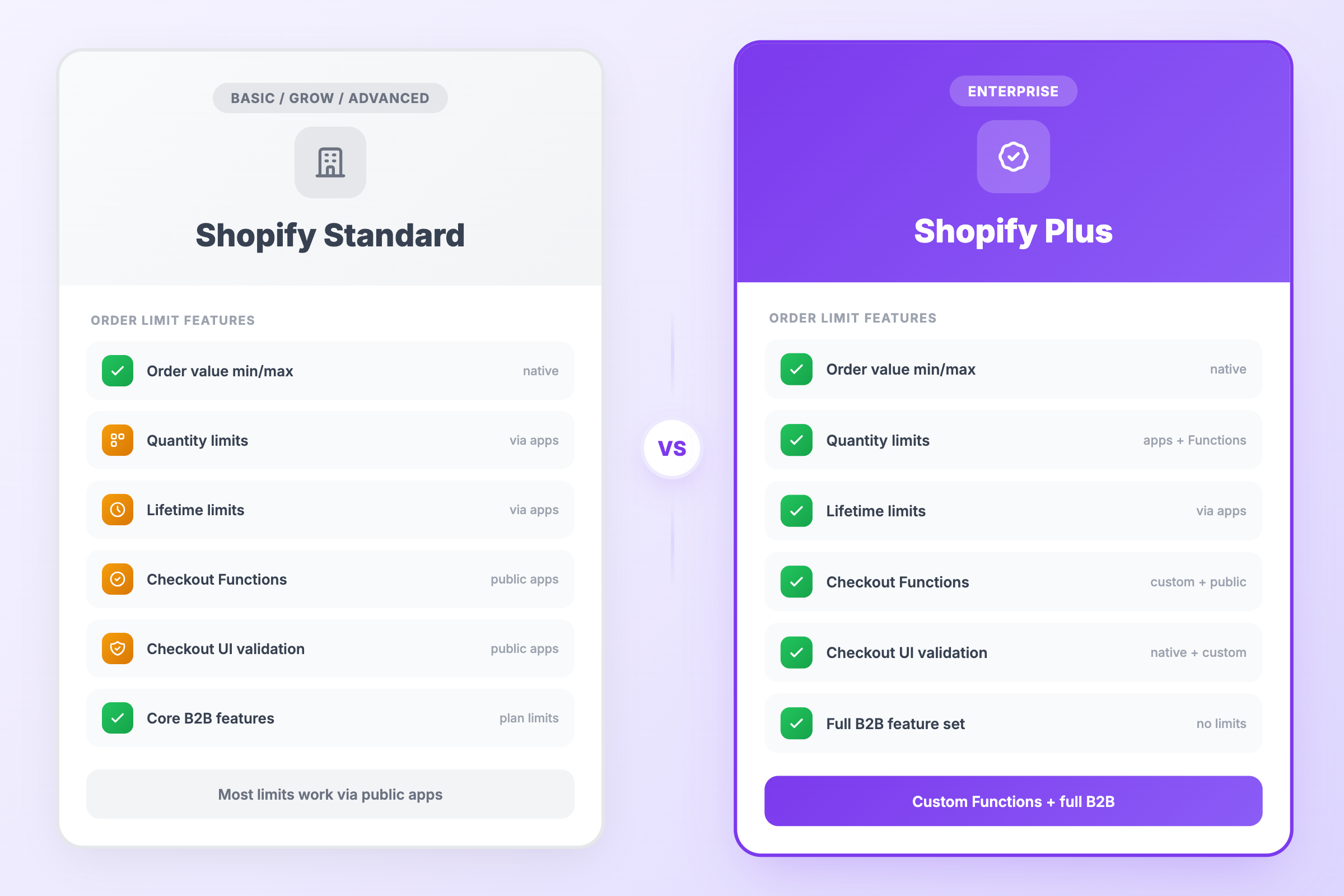
- DC Order Limits app (Customer Memory plan or higher for customer limits)
- Shopify Flow (free on Basic plan and above)
- Full Automation plan if you want automatic resets via Flow
Step 1: Create a customer purchase limit rule
Customer limits track what each customer buys across all their orders. Unlike standard cart limits, these don’t reset when someone completes checkout.
- Open the DC Order Limits app
- Go to Customer Purchase Limits
- Click Create rule
- Give it a clear name like “Monthly limit: 10 units per customer”
- Set the Maximum Quantity to your monthly cap (e.g., 10)
- Choose which products this applies to (all products, specific tags, or individual selections)
- Under Customer Eligibility, choose who the rule applies to (all customers, customers with specific tags, or selected customers)
- Under Guest Customer Behavior, choose Allow guest checkout (limits enforced at email entry) or Require login (account required)
- Save the rule
At this point, the limit tracks purchases across orders but doesn’t reset automatically. That’s where Shopify Flow comes in.
Step 2: Schedule monthly resets with Shopify Flow
Shopify Flow can trigger a reset of customer limits on a schedule. This means limits clear at the start of each month, giving customers a fresh allocation.
Note: Automatic resets via Shopify Flow require the Full Automation plan ($59/mo). If you’re on the Customer Memory plan, you can reset limits manually from the usage history page.
- Open Shopify Flow
- Create a new workflow
- For the trigger, choose Scheduled time
- Set it to run on the 1st of each month at midnight (or whatever time works for your business)
- Add the DC Order Limits action: Schedule limit resets
- Configure which customer limits to reset
- Turn on the workflow
Now your customer limits will automatically reset at the start of each month.
How it looks to customers
When a customer tries to exceed their monthly limit, they see an error message at checkout. The message explains they’ve reached their limit for this period.
If they check back after the reset date, their limit is cleared and they can purchase again.
Variations: daily, weekly, or custom schedules
The same approach works for any time period:
Daily limits: Set the Flow trigger to run every day at midnight
Weekly limits: Set the trigger to run every Monday (or whatever day starts your week)
Quarterly limits: Set the trigger for the 1st of January, April, July, and October
You control the schedule. The customer limit rule handles the tracking, and Flow handles the reset.
A note about guest checkout
Customer limits work for both logged-in customers and guests. The app tracks purchase history by email address, so limits are enforced when customers enter their email at checkout.
You have two options in the Guest Customer Behavior section:
- Allow guest checkout - Limits are enforced when customers enter their email at checkout. No login required. This is the default and works well for most stores.
- Require login - Customers must log in or create an account before purchasing limited products. Use this if you want the extra friction of account creation.
Most merchants use “Allow guest checkout” since it enforces limits without adding friction.
Common use cases
Subscription box add-ons. Let subscribers add up to 3 extra items per month at a discount. Reset limits monthly so they get a fresh allocation with each box.
Wholesale allocations. Give wholesale customers a monthly budget or quantity cap. Useful for managing limited inventory across multiple retailers.
Sample programs. Let customers order free samples, but limit them to 2 per month to prevent abuse.
Flash sale fairness. Run weekly drops where each customer can buy 1 unit. Reset limits before the next drop so everyone gets another chance.
Troubleshooting
Limits aren’t resetting: Check that your Shopify Flow workflow is active and the schedule is correct. You can verify your limit configuration by manually resetting from the usage history page, then confirm Flow is scheduled properly.
Customers seeing wrong limits: Limits are tracked by email address. Make sure customers are using the same email. If someone checks out as a guest with one email, then uses a different email later, those will be tracked separately.
Need to reset mid-month: You can manually reset limits from the DC Order Limits usage history page, or adjust your Flow schedule temporarily.
Summary
Monthly purchase limits combine two features: customer limits (which track purchases across orders) and Shopify Flow (which resets those limits on a schedule).
- Create a customer purchase limit rule in DC Order Limits (Customer Memory plan or higher)
- Schedule a monthly reset with Shopify Flow (Full Automation plan)
- Customers get a fresh allocation each month
For more on customer limits, see our guide on setting customer purchase limits on Shopify. For other Shopify Flow automations, check out unlocking the power of Shopify Flow with DC Order Limits.
Install DC Order Limits to start managing customer purchase limits with automatic resets.