· Dash Checkout · order-limits · 5 min read
Monthly purchase limits on Shopify: Complete setup tutorial
Step-by-step guide to setting up purchase limits that reset automatically each month. Covers rule creation, Shopify Flow automation, and testing.
Your staff discount program is getting abused. Employees are supposed to get 5 discounted items per month, but some are buying 5 items every week. Or your VIP members are cleaning out limited drops before regular customers get a chance. Standard Shopify quantity limits won’t help—they reset after every checkout.
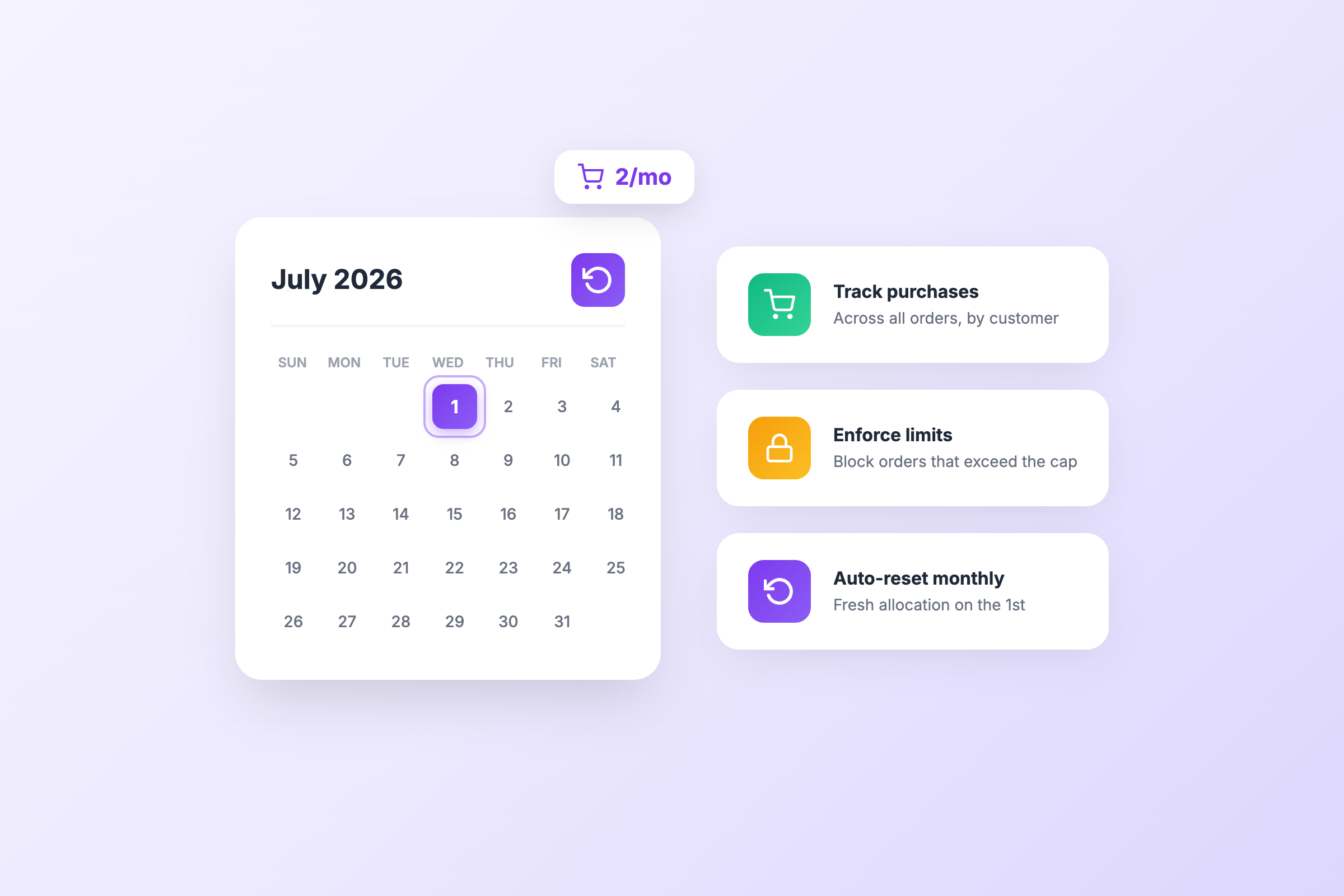
Monthly purchase limits solve this by tracking what each customer buys across all their orders, then resetting that count on the 1st of each month. Here’s exactly how to set them up.
What makes monthly limits different
Most Shopify quantity limits only see the current cart. A customer hits your max of 2, completes checkout, then comes back tomorrow and buys 2 more. Repeat forever.
Monthly limits work differently:
- Per-order limits reset after every checkout
- Daily limits reset at midnight
- Weekly limits reset every Monday (or whatever day you choose)
- Monthly limits reset on the 1st of each month
- Lifetime limits never reset
Monthly sits in a sweet spot. It’s restrictive enough to prevent abuse, but generous enough that customers don’t feel punished. Staff get their monthly perk. VIPs get their exclusive allocation. Everyone gets fair access to restocks.
When to use monthly limits
Employee discount programs. Staff get X units or $Y worth of product at their discount each month. The limit resets on the 1st so they get a fresh allocation with each pay period.
Subscription box add-ons. Subscribers can add up to 3 extra items per month at a special price. The limit aligns with their billing cycle.
Membership perks. VIP customers get early access to 2 limited items per month. Regular customers get access to whatever remains.
High-demand restocks. You’re restocking a popular item and want fair allocation across your customer base. Each customer can buy 1 per month, preventing resellers from grabbing everything.
What you’ll need
- DC Order Limits app (Customer Memory plan or higher)
- Shopify Flow (free on Basic plan and above)
- Full Automation plan for automatic monthly resets via Flow
Step 1: Create a customer purchase limit rule
Customer purchase limits track purchases by email address across all orders. Unlike cart limits, these persist after checkout.
- Open the DC Order Limits app
- Go to Customer Purchase Limits
- Click Create rule
- Name it clearly: “Monthly limit: 2 units per customer”
- Set Maximum Quantity to your monthly cap (e.g., 2)
- Choose which products this applies to:
- All products
- Products with specific tags
- Specific products or collections
- Under Customer Eligibility, set who the rule applies to:
- All customers
- Customers with specific tags (useful for staff or VIP programs)
- Selected customers
- Under Guest Customer Behavior, choose:
- Allow guest checkout — limits enforced when they enter their email (recommended)
- Require login — customers must have an account
- Save the rule
At this point, the limit tracks purchases but doesn’t reset. A customer who buys 2 units is blocked forever—until you add the automated reset.
Step 2: Schedule monthly resets with Shopify Flow
Shopify Flow triggers the reset on a schedule you define. Here’s the setup:
- Open Shopify Flow from your admin
- Click Create workflow
- Click Select a trigger and choose Scheduled time
- Configure the schedule:
- Frequency: Monthly
- Day: 1st
- Time: 12:00 AM (or whenever makes sense for your timezone)
- Click Then to add an action
- Search for DC Order Limits in the action list
- Select Schedule limit resets
- Choose which customer limit rules to reset (select the rule you created in Step 1)
- Click Turn on workflow
The workflow now runs automatically on the 1st of each month, clearing all tracked purchases for that rule.
Manual reset option
Don’t want to wait for the scheduled reset? You can reset limits anytime:
- Open DC Order Limits
- Go to Usage History
- Find the customer or rule you want to reset
- Click Reset
This is useful for mid-month adjustments or testing.
Step 3: Test that it works
Before announcing your new monthly program, verify everything works:
Test the limit:
- Create a test customer account (or use your own email)
- Add a limited product to cart
- Complete checkout
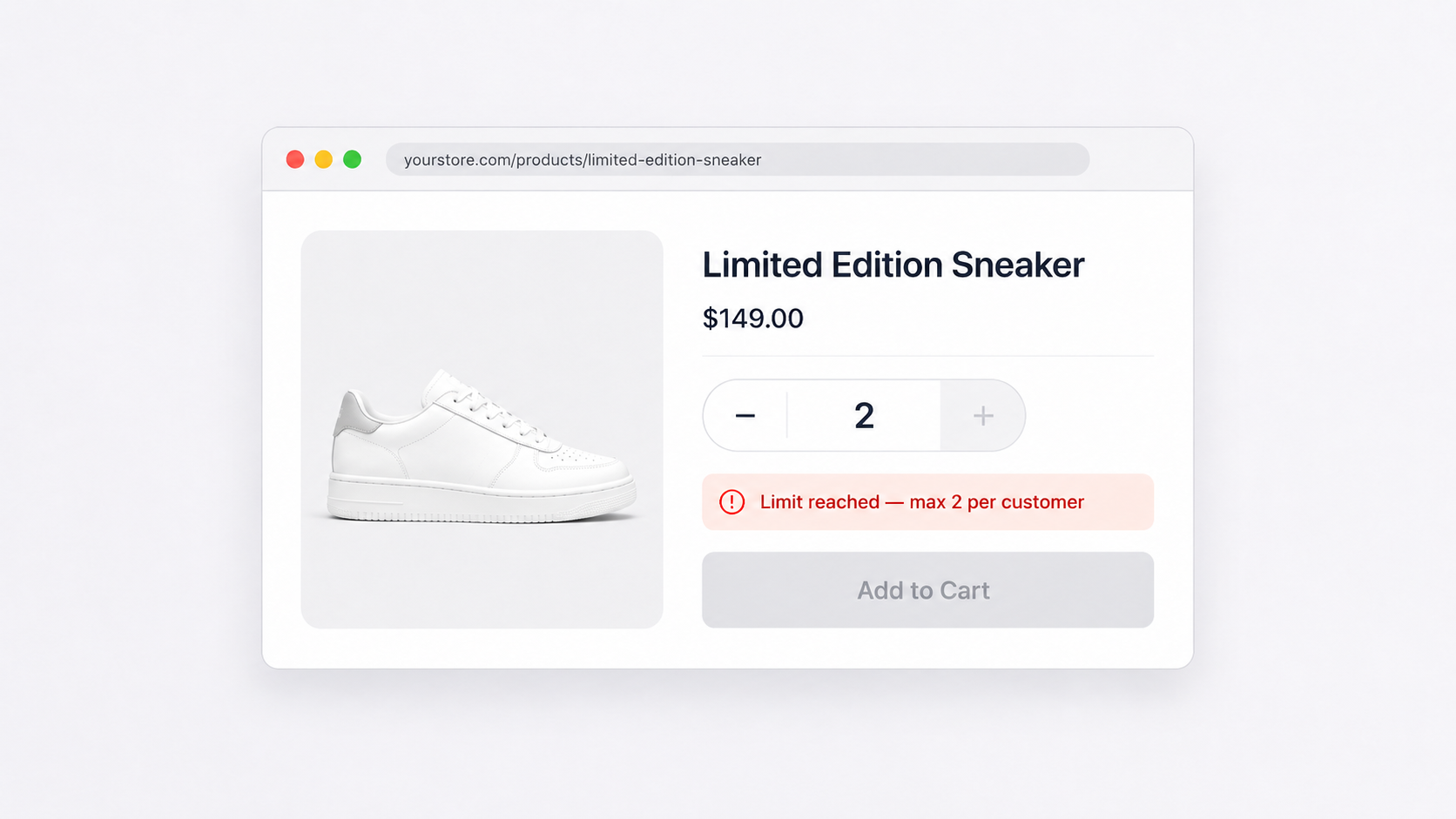
- Try to purchase again—you should see an error message explaining the limit
Test the reset:
- Go to DC Order Limits → Usage History
- Find your test customer
- Click Reset to clear their usage
- Try purchasing again—it should succeed
Test the error message: The default message explains the limit clearly. If you want to customize it, go to Settings → Messages in the app.
Different limits for different customer groups
You can create separate rules for different customer tags. For example:
Staff discount program:
- Create a rule with Customer Eligibility set to “Customers tagged with: staff”
- Set the limit to 5 units per month
- Apply to products tagged “staff-discount”
- Create a rule for “Customers tagged with: vip”
- Set the limit to 2 units per month
- Apply to products tagged “limited-drop”
General customer fairness:
- Create a rule for “All customers”
- Set the limit to 1 unit per month
- Apply to specific high-demand products
Each rule can have its own reset schedule, or they can all reset together on the 1st.
FAQs
Can I reset limits mid-month?
Yes. Go to Usage History in the app and reset individual customers or the entire rule. You can also trigger a manual Flow run if you’ve set one up.
What happens when a customer gets a refund?
Their quota is restored automatically. If someone buys 2 of their 2-unit limit and returns 1, they can purchase 1 more before the monthly reset.
Do limits work for guest checkout?
Yes. The app tracks by email address. When a guest enters their email at checkout, their purchase history is checked against the limit. No account required.
Can I set limits by dollar amount instead of quantity?
Yes. When creating the rule, choose “Maximum Spend” instead of “Maximum Quantity.” Useful for employee discount programs with a monthly budget.
What if a customer uses multiple email addresses?
Each email is tracked separately. If you’re concerned about abuse, consider requiring customer accounts (Require login option) and using Shopify’s built-in duplicate account detection.
Summary
Monthly purchase limits combine two features:
- Customer limits in DC Order Limits track purchases across orders
- Shopify Flow resets those limits on the 1st of each month
The result: customers get a fresh allocation each month, staff discount programs stay fair, and high-demand products get distributed across your customer base instead of going to the fastest clickers.
Install DC Order Limits to set up monthly purchase limits on your store.