· Dash Checkout · order-limits · 9 min read
How to set lifetime purchase limits on Shopify
Cart limits reset after every order, which means determined buyers can purchase repeatedly. Lifetime limits track what each customer has bought across all their orders and block them once they hit the cap.
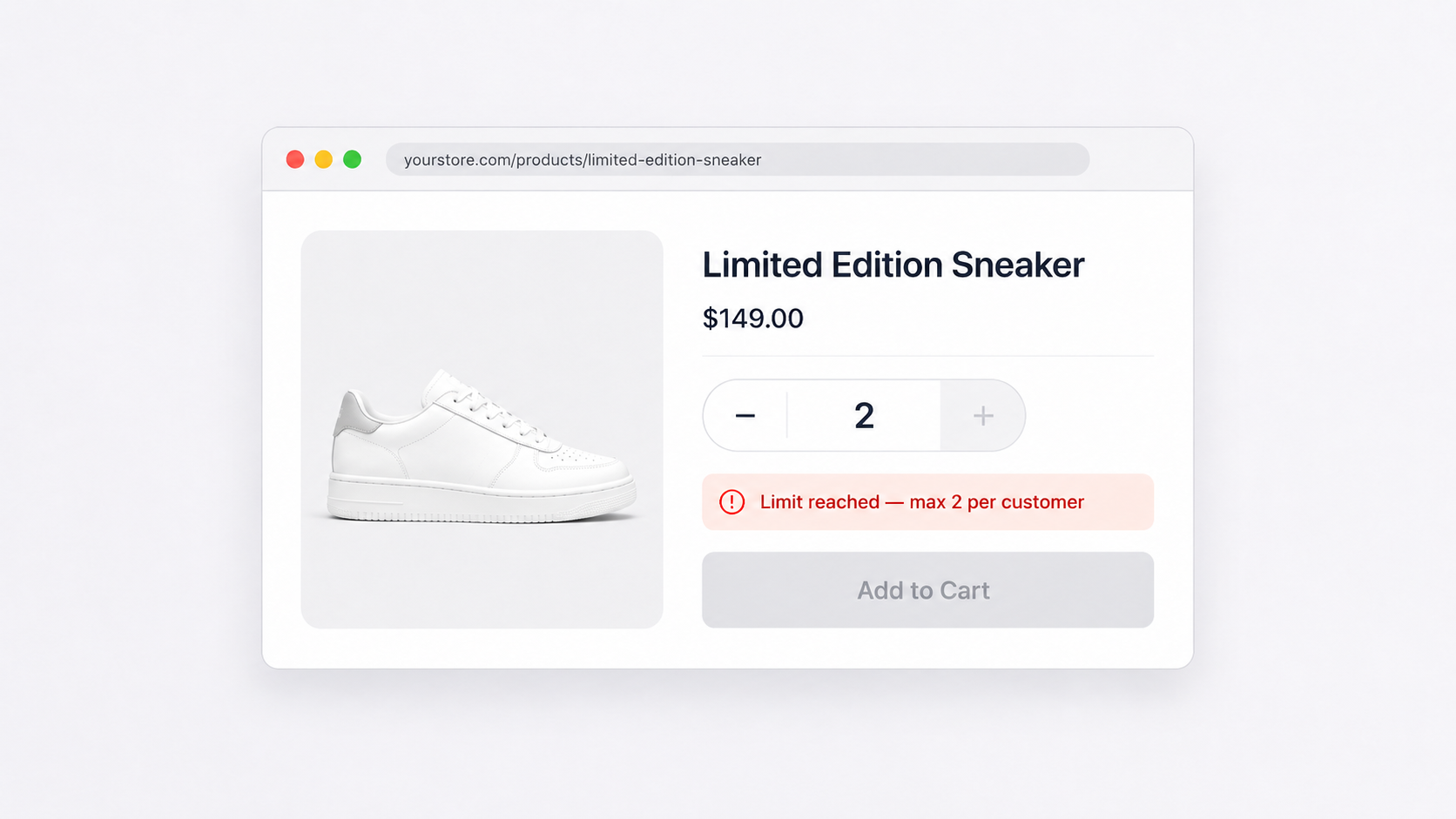
You drop a limited product. You set a max quantity of 2 per cart. Within an hour, you notice the same email placing a third order. The cart limit did exactly what it was designed to do: it capped the current checkout at 2. Then the customer checked out, refreshed, and started over.
This is the gap between cart limits and lifetime limits. Cart limits see the current transaction. Lifetime limits remember every transaction.
If you need customers to stay within a hard cap across all their orders, not just one, this guide covers exactly how to set that up.
What makes lifetime limits different
Most Shopify merchants start with the quantity limit built into the product page. Shopify lets you set a maximum quantity per item in the cart. It works fine for managing cart sizes, but it has no memory. Once a customer checks out, the slate is clean. They can come back and buy again.
Lifetime purchase limits work differently. When a customer completes an order, their purchase count is recorded against their account. The next time they try to buy, the app checks their history. If they have already hit the cap, their cart is blocked.
There is no window, no reset date. The cap applies across every order they have ever placed with your store. That is what “lifetime” means.
For a broader look at all the ways you can use this feature, see the Shopify lifetime purchase limits overview page.
When lifetime limits make sense
Not every situation calls for a permanent cap. But a few use cases are a natural fit.
Limited product drops. You have 200 units of a collaboration and you want each buyer to get one fair shot. Lifetime limits mean a customer who got a pair in March cannot grab another pair in September when you restock the same model.
Free gifts and samples. You offer a free sample with first orders. Standard cart limits do not prevent someone from ordering the sample once a week. A lifetime cap of 1 locks it to the first order, permanently.
One-per-household products. Regulated items, subsidized goods, or anything where the intent is “one household gets one” need limits that outlast a single checkout session.
Reseller and bulk-buyer prevention. Some buyers create multiple orders over weeks or months specifically to accumulate stock for resale. Tracking lifetime quantity makes that harder to do undetected.
Loyalty or welcome offers. New customer discounts or welcome bundles that should only apply once. Lifetime limits enforce that without relying on discount codes that can be shared.
The difference from time-window limits
Lifetime limits are often confused with monthly or weekly limits. The distinction is worth being clear on.
Time-window limits (monthly, weekly, daily) track purchases within a period and then reset. A monthly limit of 2 means a customer can buy 2 in January, 2 in February, and so on. This is useful for subscription add-ons, staff discount programs, and situations where you want ongoing access with a cap per cycle. For that setup, see the guide on monthly purchase limits on Shopify.
Lifetime limits never reset (unless you manually reset them). A customer who hits a lifetime cap of 2 stays at that cap indefinitely. There is no automatic refresh.
Choose time-window limits when you want to allow ongoing purchases with periodic fairness. Choose lifetime limits when you want a permanent hard cap per customer.
How to set up a lifetime purchase limit
DC Order Limits handles this through its Customer Purchase Limits feature. Here is the step-by-step setup.
Step 1: Open Customer Purchase Limits.
In the DC Order Limits app, go to the Customer Purchase Limits section and click Create rule.
Step 2: Set your cap.
You can set a maximum quantity, a maximum spending amount, or both. For a product drop where you want each customer to buy at most 2 units, set Maximum Quantity to 2. For a dollar-based cap (for example, a welcome offer worth no more than $50), use Maximum Spending instead.
Step 3: Choose which products the rule applies to.
You can apply the limit to all products, products with specific tags, selected products by ID or title, or specific product variants. For a limited drop, tagging all the relevant products and selecting that tag here is the most flexible approach. Note that collections are not a supported option. Use tags instead.
Step 4: Set customer eligibility.
The rule can apply to all logged-in customers, customers with specific tags, or individual customers by email. If your limit is store-wide, “all logged-in customers” works well. If you are targeting a specific group, such as wholesale accounts or VIP members, filter by customer tag.
Step 5: Decide how to handle guest checkout.
This is where the choice matters. Customer purchase limits require customer identification to track history. You have two options:
- Allow purchases without limits means guest customers can check out but their purchases are not tracked against the cap. This gives guests a frictionless experience but means the limit only applies to logged-in accounts.
- Block and require login means any customer trying to buy the limited product must log in or create an account first. This gives you full tracking coverage but adds a step to checkout.
Most merchants running hard lifetime caps choose to require login. If a customer can check out as a guest and bypass the cap, the limit does not fully hold.
Step 6: Save and test.
Create a test customer account, complete a purchase up to the cap, then try to add more. You will see an error message at checkout. You can customize that message in the app settings.
Grouping: per product or per variant
When you create the rule, you choose how the limit groups across products.
Any item means the cap applies to the total quantity across everything the rule covers. A customer with a cap of 3 who buys product A and product B has 3 total across both.
Per product means each product tracked by the rule gets its own cap. A cap of 2 per product means 2 of product A and 2 of product B are each allowed separately.
Per variant applies the cap to each variant independently. Useful for apparel drops where you want each colorway or size to have its own limit.
Choose based on whether you want a shared pool or separate allocations per product.
Excluding certain customers
Not every customer should be subject to the limit. Staff, VIP wholesale accounts, or trusted partners often need exemptions.
DC Order Limits supports exclusion rules. You can exempt customers with specific tags from any rule, so your wholesale accounts or internal team can order freely while the limit applies to everyone else. See the exclusions feature guide for setup details.
Resetting limits when you need to
Lifetime limits do not reset automatically, but you can reset them manually when the situation calls for it.
The app’s built-in reset clears all customers tracked by a rule at once. It works by incrementing a revision number, which makes previous usage data invisible to the limit check. From the customer’s perspective, their history clears. If you need to reset a single customer rather than everyone, that is a manual workaround: find the customer in Shopify admin, locate their metafield for the rule, and clear the value directly.
When would you do this? A store doing a second run of a limited product might want to give customers who bought round one a chance at round two. Resetting limits before the new drop opens that back up.
If you want resets to happen on a schedule rather than manually, that requires Shopify Flow and a scheduled trigger. This turns a lifetime limit into a time-window limit. Our guide on setting monthly purchase limits on Shopify covers that setup in detail.
A note on multiple accounts and emails
Lifetime limits track customers by their logged-in account. If someone creates a second account with a different email, the app sees them as a different customer. The new account has no purchase history, so the limit does not apply.
There is no perfect solution to this. But requiring login instead of allowing guest checkout removes one easy workaround: the anonymous checkout. Most casual buyers will not go to the trouble of creating a second account. Resellers who do are a harder problem that no app-level limit fully solves on its own.
What lifetime limits do solve is the common case: the customer who places a second or third order with the same account because they want more. That is the scenario these limits are built for.
Frequently asked questions
What happens when a customer hits the limit?
They see an error message at checkout explaining that they have reached their limit for this product. The message is customizable in the app settings. Their cart is blocked from completing.
Can I apply a lifetime limit to a specific variant?
Yes. When setting up product eligibility, choose “Selected Product Variants” and enter the variant IDs or titles. Set grouping to “Per variant” to give each variant its own cap.
Can I set both a quantity limit and a spending limit on the same rule?
Yes. You can set a maximum quantity and a maximum spending amount together. The rule triggers whichever cap is hit first.
When does the limit get enforced?
Customer purchase limits are enforced at checkout validation. When a customer tries to complete an order that would push them over their cap, the checkout is blocked and they see an error message.
What if I want the limit to reset after a year?
Automatic time-based resets require Shopify Flow. If you want a once-per-year cap, you can schedule a Flow trigger to reset the rule annually. For shorter windows like monthly or weekly, see our guide on how to set customer purchase limits on Shopify.
Getting started
Lifetime purchase limits close a real gap in how Shopify handles repeat buyers. Cart limits are useful, but they reset. If you need a hard cap that sticks across all orders, you need customer-level tracking.
DC Order Limits provides this through its Customer Purchase Limits feature. Set the cap, choose your products, decide how to handle guests, and you have a limit that actually holds.
You can read more about how the feature works on the Shopify lifetime purchase limits page, or install the app and create your first rule today.