· Dash Checkout · checkout · 10 min read
Shopify checkout validation without Shopify Plus
Most merchants assume checkout customization requires Shopify Plus. Here is what you can actually do on any Shopify plan using public apps and Shopify Functions.
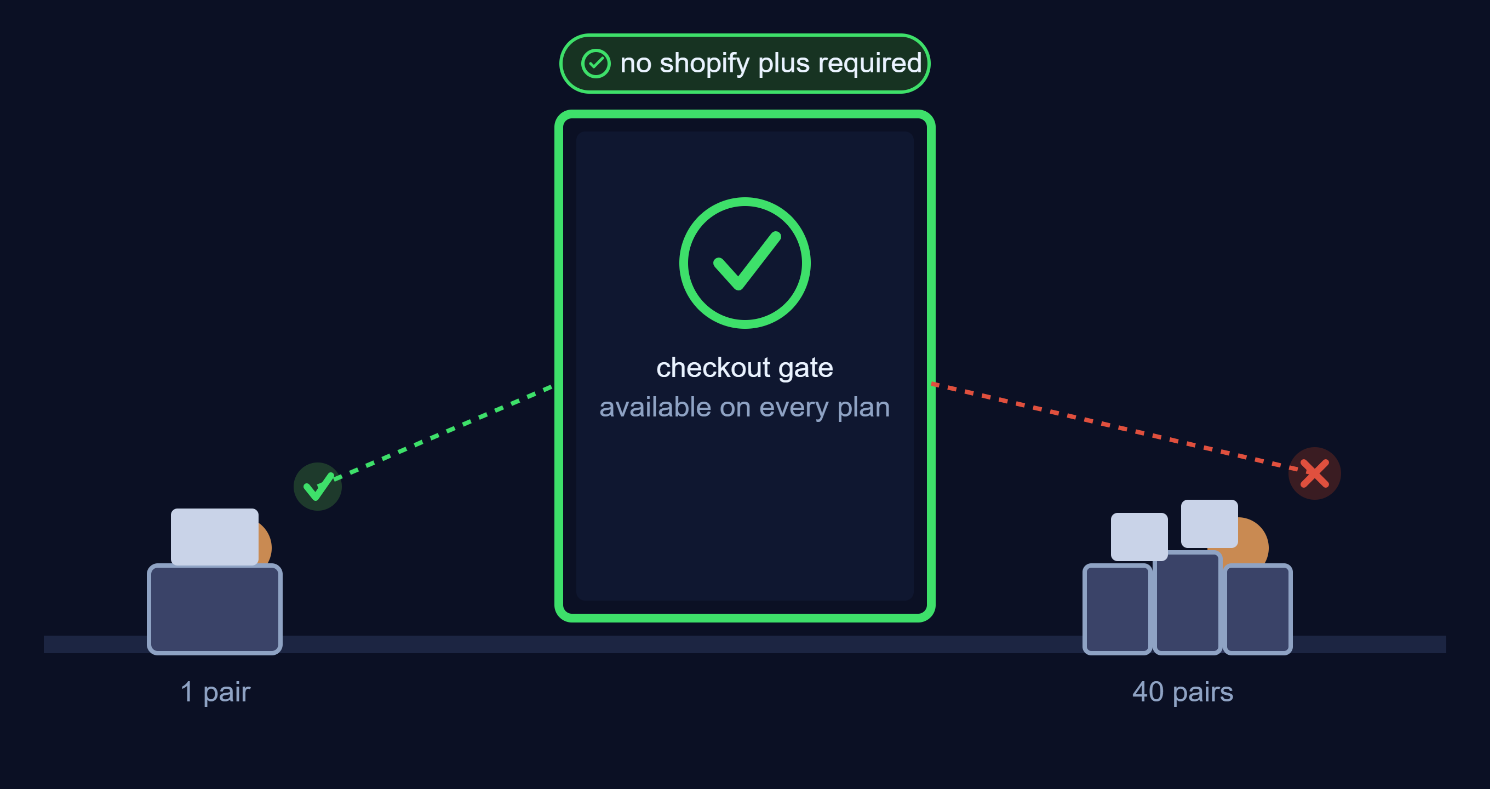
A sneaker store ran their first limited release last month. Within 90 seconds, their entire inventory went to 12 customers. One person bought 40 pairs. The store owner assumed preventing this required Shopify Plus and its $2,300/month price tag.
It doesn’t.
Shopify has quietly opened up checkout customization capabilities that used to be Plus-exclusive. Public apps can now use Shopify Functions to enforce rules at checkout on any Shopify plan. The catch: most merchants don’t know this, and Shopify’s documentation doesn’t make it obvious what’s available where.
About this guide: Dash Checkout builds checkout customization tools for Shopify. We’ll cover exactly what checkout validation you can implement without Plus, what genuinely requires it, and how to set up the most common use cases.
What changed in 2024
Shopify rolled out checkout extensibility in 2023, initially as a Plus-only feature. The messaging created a lasting impression: checkout customization means Plus.
But starting in late 2024, Shopify began allowing public App Store apps to deploy Shopify Functions on all plans. This is a significant shift. Apps that merchants install from the App Store can now run validation logic at checkout, even on Basic Shopify.
The distinction that matters: you can’t build and deploy your own custom Functions without Plus. But you can install apps that use Functions, and those apps work on any plan.
For checkout validation specifically, this means:
- Cart validation (blocking checkout based on rules): available on all plans via apps
- Quantity limits enforced at checkout: available on all plans via apps
- Lifetime purchase tracking: available on all plans via apps
- Payment method customization: hiding and reordering requires Plus; renaming works everywhere
- Delivery method customization: available on all plans via apps
Cart validation: blocking checkout when rules aren’t met
Cart validation is the core of checkout protection. When a customer tries to check out with a cart that violates your rules, checkout blocks and shows an error message.
This works through Shopify’s Cart Validation Function API. The function runs at checkout, evaluates the cart against your rules, and returns either “proceed” or “block with message.”
What you can validate:
- Maximum quantity per product (e.g., “limit 2 per customer”)
- Maximum quantity across a collection (e.g., “limit 5 from this category”)
- Total cart quantity caps (e.g., “maximum 10 items per order”)
- Minimum order values or quantities
- Quantity increments (e.g., “must buy in multiples of 6”)
- Product combinations (e.g., “can’t buy preorder and in-stock items together”)
- Customer eligibility (e.g., “wholesale tagged customers only”)
- Geographic restrictions (e.g., “certain products not available in California”)
How it works in practice:
A customer adds 5 units of a limited-edition product to their cart when your rule allows 2. They try to check out. The validation function catches this, and checkout displays: “Maximum 2 per customer for this item. Please reduce quantity to continue.”
The customer can’t proceed until they fix their cart. No workarounds, no bypassing through quick checkout buttons.
Lifetime purchase limits: tracking customers across orders
Single-order limits stop bulk buying in one transaction. Determined resellers place multiple orders. Lifetime limits track purchase history and enforce “2 per customer ever” rules.
This requires tracking how much each customer has already bought. On Shopify, this data lives in customer metafields. The validation function checks current cart plus historical purchases against your limit.
What this enables:
- “Maximum 2 units lifetime” for limited releases
- “Maximum $500 per customer per month” for controlled substances or age-restricted products
- “Maximum 1 per household” by tracking shipping addresses
- Rolling window limits like “10 units per 30 days”
The tracking mechanism:
When an order completes, the app updates the customer’s metafield with their new purchase count. When the same customer tries to buy more, the validation function reads their history and blocks if they’re over limit.
This works for logged-in customers. Guest checkout presents challenges since there’s no persistent customer record. Options include:
- Requiring login for limited products
- Tracking by email address (customers can work around this by using different emails)
- Tracking by shipping address (harder to game, but family members at the same address share the limit)
Mixed cart validation: controlling what can be bought together
Some product combinations create fulfillment problems or customer confusion. Pre-order items shipping in 3 months shouldn’t be in the same cart as in-stock items shipping tomorrow.
Mixed cart validation blocks checkout when incompatible products appear together.
Common use cases:
- Pre-order and in-stock items can’t be combined (prevents holding in-stock items)
- Subscription box components must all be the same subscription type
- Wholesale-only products can’t be bought with retail products
- Heavy items can’t combine with standard shipping products
- Age-restricted products require separate checkout
The customer experience:
A customer adds a pre-order hoodie and an in-stock t-shirt to their cart. At checkout, they see: “Pre-order and in-stock items cannot be purchased together. Please complete separate orders.”
They remove the t-shirt, complete the pre-order, then place a second order for the t-shirt. Both orders ship on their correct timeline.
Payment and delivery customization: what works where
Checkout extends beyond validation. You might want to hide payment methods for certain orders, rename confusing carrier labels, or reorder options to put your preferred choice first.
This is where Plus vs. non-Plus differences are sharpest.
Payment methods:
| Action | Shopify Plus | All other plans |
|---|---|---|
| Hide payment methods | Yes | No |
| Reorder payment methods | Yes | No |
| Rename payment methods | Yes | Yes |
Hiding and reordering payment methods requires Plus. If you’re on Basic, Grow, or Advanced Shopify, renaming is your only option. But renaming is more useful than it sounds: “Cash on Delivery” becomes “Cash on Delivery (+$5 handling fee)” and sets expectations before customers select it.
Delivery methods (shipping options):
| Action | Shopify Plus | All other plans |
|---|---|---|
| Hide shipping methods | Yes | Yes (via apps) |
| Reorder shipping methods | Yes | Yes (via apps) |
| Rename shipping methods | Yes | Yes (via apps) |
Delivery customization is available on all plans through public apps. You can hide express shipping for bulky products, rename carrier labels to customer-friendly names, and reorder options so your preferred method appears first.
This asymmetry surprises merchants. Payment method customization is locked to Plus, but delivery method customization works everywhere.
Checkout UI: validation messages vs. custom fields
Checkout UI customization has another Plus/non-Plus split.
Validation messages (all plans):
When validation fails, your error message displays in Shopify’s native error banner format. The message text comes from your configuration, but the visual style is Shopify’s standard. This works on all plans because it’s part of the validation function response.
Custom checkout UI (Plus only):
If you want custom input fields at checkout, interactive components, branded banners, or visual elements beyond the standard Shopify layout, you need Plus. Checkout UI Extensions for the information, shipping, and payment steps are Plus-exclusive.
For most validation use cases, native error messages are sufficient. Customers see a clear message explaining why checkout is blocked and what they need to fix.
What genuinely requires Shopify Plus
After covering what’s available everywhere, here’s what actually needs Plus:
Custom Function development. You can use apps that deploy Functions, but building and deploying your own custom Functions requires Plus. This matters if you have proprietary business logic you don’t want in a third-party app.
Payment method hiding and reordering. The only checkout customization where the Plus requirement is hard. Renaming works everywhere; hiding and reordering don’t.
Full Checkout UI Extensions. Custom fields, banners, and interactive components at checkout need Plus.
API limits. Plus gets 20 API calls per second vs. 2 on standard plans. For high-volume stores with many integrations, this becomes the real upgrade trigger.
B2B at scale. Standard Shopify includes core B2B features with plan-based limits. Plus removes those limits and adds advanced company account features.
Setting up cart validation without Plus
Here’s the practical path to implementing checkout validation on any Shopify plan:
Step 1: Choose an app that uses Shopify Functions.
Look for apps built on checkout extensibility, not legacy cart scripts. The app should mention “checkout validation” or “Shopify Functions” in its description. DC Order Limits is one option; there are others.
Key features to look for:
- Quantity limits (min/max per product)
- Purchase limits (lifetime tracking across orders)
- Mixed cart restrictions
- Customer targeting (tags, logged-in status)
- Error message customization
Step 2: Configure your rules.
Most validation apps have similar rule structures:
- What to limit: Specific products, product tags, collections, or all products
- How to limit: Maximum quantity, minimum quantity, quantity increments
- Who it applies to: All customers, logged-in only, specific customer tags
- When it runs: Cart only, checkout only, or both
Start with your most critical use case. A sneaker store might start with “Maximum 2 per customer on products tagged ‘limited-drop’.” Expand from there.
Step 3: Test at checkout.
Add products to your cart that should trigger validation. Go through checkout. Verify the error message appears and blocks completion. Try different scenarios:
- Quantity over limit
- Multiple orders as the same customer (for lifetime limits)
- Guest checkout vs. logged-in
- Different customer tags
Step 4: Customize error messages.
Default messages work, but specific ones convert better. Instead of “Quantity limit exceeded,” try “This limited edition is capped at 2 per customer. We want everyone to have a chance to get one.”
Explain the “why” and customers accept the restriction more gracefully.
Real scenarios: what merchants are validating
Limited product drops:
A streetwear brand limits releases to 1 per customer per colorway. Validation runs on both cart and checkout. The rule uses customer email tracking so even guest checkout is covered. Result: drops go to more unique customers instead of resellers.
Wholesale minimums:
A B2B store requires $500 minimum orders from wholesale-tagged customers. Validation blocks checkout with a clear message about the minimum. Retail customers see no minimum. Result: wholesale orders are always worth processing.
Subscription box quantities:
A subscription box company requires customers to pick exactly 6 items from their customization options. Validation enforces both minimum (can’t proceed with 5) and maximum (can’t add a 7th). Result: all boxes ship with correct item counts.
Pre-order separation:
A gaming store sells both in-stock and pre-order items. Mixed cart validation prevents combining them. Result: in-stock orders ship immediately without waiting for pre-order fulfillment.
Geographic restrictions:
A California retailer can’t ship certain products to other states due to regulations. Validation checks shipping state against product restrictions and blocks incompatible combinations. Result: compliance without manually reviewing every order.
Common questions
Does validation work with Shop Pay, Apple Pay, and Google Pay?
Yes. Shopify Functions run at checkout regardless of how customers initiate it. Express checkout buttons still go through validation. If a customer’s cart violates rules, they get blocked at the payment step with an error message.
Can customers bypass validation by changing quantity after adding to cart?
They can try. Validation runs when checkout initiates and when the checkout step advances. If they modify their cart mid-checkout, validation catches it. Some apps also validate cart changes in real-time.
Do validation rules slow down checkout?
Shopify Functions run in under 5 milliseconds. Customers don’t notice any delay. The validation adds negligible overhead to the checkout process.
Can I validate based on discount codes?
Yes, but the approach varies. Some apps let you include or exclude orders with specific discount codes from rules. This is useful for “VIP customers using this code can buy more than the normal limit.”
What happens if I hit Shopify’s limits?
Shopify allows up to 25 active checkout customizations per type. For most stores this is plenty. If you need more complex rule sets, consolidate rules where possible or use apps that batch multiple conditions into single customizations.
Start with one rule
Checkout validation without Plus is real and practical. The technology exists, apps support it, and it works on Basic Shopify through Advanced.
Pick your most painful problem. Resellers buying out your limited releases? Start with quantity limits per customer. Pre-orders mixing with in-stock and causing fulfillment delays? Start with mixed cart restrictions. Wholesale customers placing orders below your minimums? Start with order value validation.
One rule, implemented properly, demonstrates the value. Expand from there.
DC Order Limits includes cart validation, lifetime purchase limits, and mixed cart restrictions alongside order limit configurations. If you’re already dealing with checkout problems that you assumed required Plus, you can solve most of them today.
Related guides: