· Zayd Khan · order-limits · 6 min read
How to keep pre-order and in-stock items in separate Shopify orders
When customers mix pre-orders with in-stock items, someone eats the shipping cost. Here is how to block mixed carts so each order ships on its own schedule.
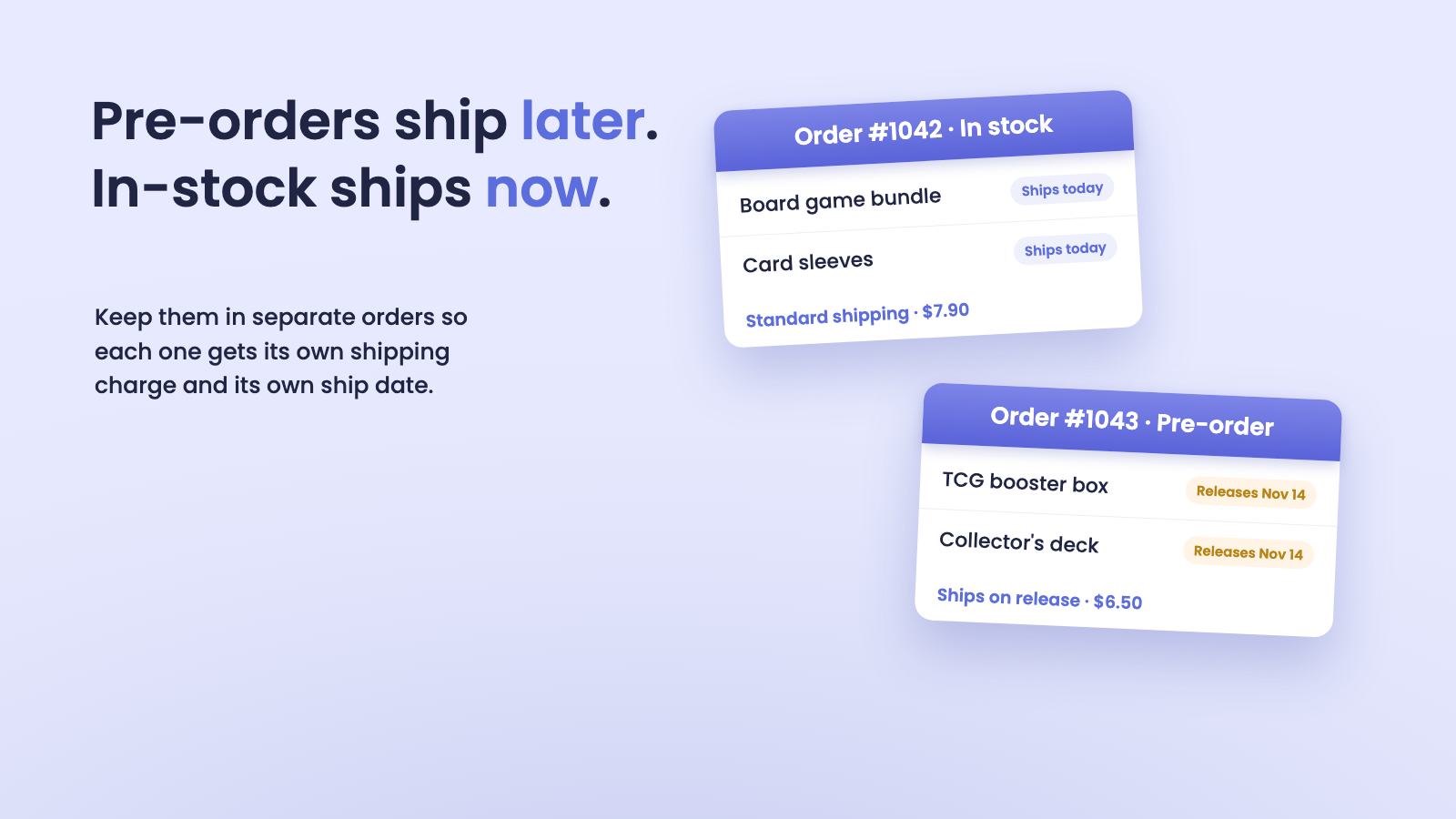
A game store wrote to us this week with a problem every pre-order merchant knows. Customers were adding a booster box releasing in November to the same cart as card sleeves sitting on the shelf right now.
Every one of those mixed orders forces a bad choice. Hold the whole order until release day and annoy the customer who wanted their sleeves this week. Or split the fulfillment into two shipments and eat the second shipping cost, because the customer only paid for one.
The store wanted a third option: stop the mix from happening at all. Ask customers to check out their in-stock items and their pre-orders as separate orders, so each order carries its own shipping charge and its own ship date.
Shopify has no native setting for this. But it is a solved problem, and the setup takes about five minutes. Here is how it works.
Why mixed pre-order carts cost you money
When a cart contains both a pre-order and an in-stock item, Shopify treats it as one order with one shipping charge. That single charge has to cover however many shipments you actually send.
If you ship everything together on release day, you pay nothing extra, but your in-stock customer waits weeks for something you could have shipped the same day. That shows up in support tickets and in reviews.
If you ship in two waves, the second label comes out of your margin. On a $6 to $10 domestic label, a steady trickle of mixed orders adds up fast. Partial fulfillment also complicates your packing workflow, because every mixed order needs a human decision about what ships when.
Separate orders solve both sides. The in-stock order ships now with its own paid label. The pre-order ships on release with its own paid label. No waiting, no absorbed costs, no judgment calls at the packing bench.
The one thing you need first: a pre-order tag
The whole setup keys off a product tag. Every pre-order product needs a consistent tag, something like preorder, and in-stock products must not have it.
Most pre-order apps already do this for you. They add a tag to products they manage and remove it when the product goes live. Check a few of your pre-order products in the Shopify admin and look at the Tags field. If your app maintains a tag, you can use it as is.
If you manage pre-orders manually, add the tag yourself when you open a pre-order and remove it when stock arrives. Keep the spelling identical everywhere, because tag matching is exact.
One thing to watch: tags apply to the whole product. If you sell the same product as both in-stock and pre-order at the same time, the tag covers both versions. In that case, split it into two products or accept that it will be treated as a pre-order until the tag comes off.
Setting up the rule
In DC Order Limits, this is a mixed cart limit. Mixed cart limits control which products can be purchased together, using a trigger and target system: when trigger products are in the cart, target products get restricted. We cover the general feature in how to control which products can be bought together.
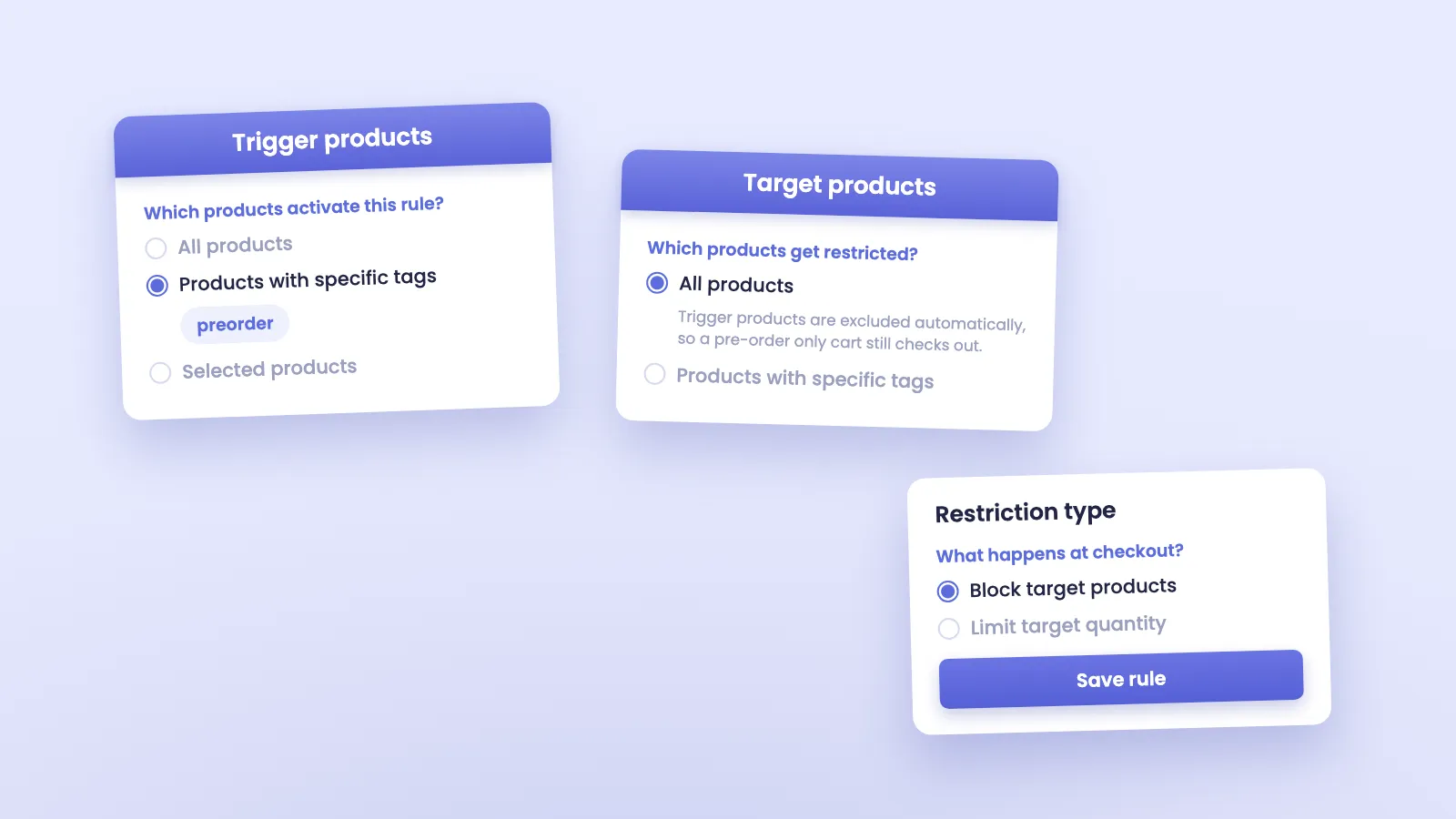
For pre-order separation, the rule looks like this:
- Open DC Order Limits and go to Order Limits, then choose Mixed Cart Limits
- Under Trigger products, select “Products with specific tags” and enter your pre-order tag
- Under Target products, select “All products”
- Under restriction type, select “Block target products”
- Save the rule
That is the entire configuration. The rule now activates whenever a tagged pre-order product is in the cart, and it blocks everything else from checking out alongside it.
The part that makes this work cleanly: trigger products are automatically excluded from the target list. A cart with only pre-order items sails through, because there is nothing left to block. A cart with only in-stock items never activates the rule. Only the mix gets stopped.
What the customer sees
When a customer tries to check out with both a pre-order and an in-stock item, checkout is blocked and an error message explains why.
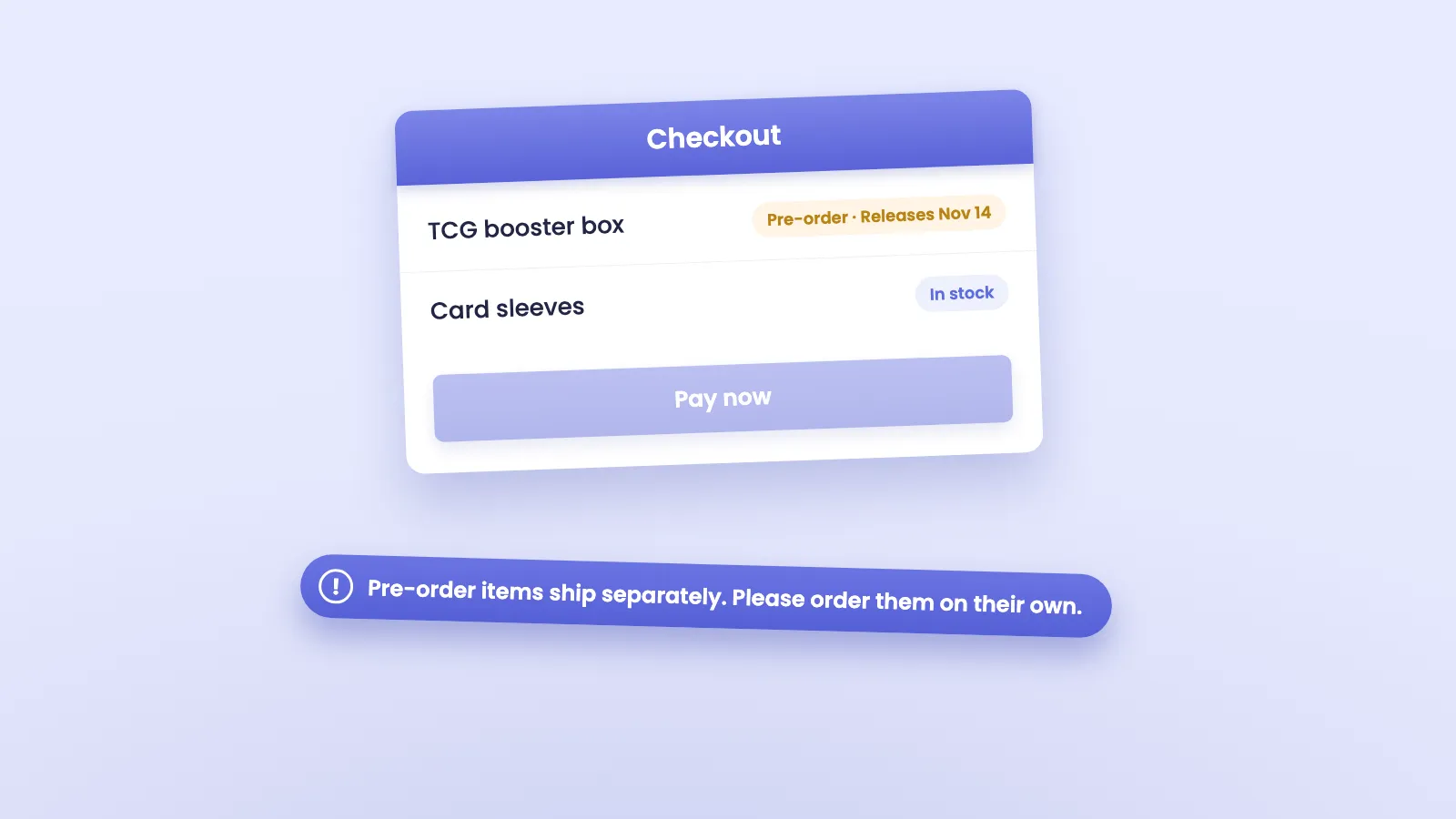
The message is fully customizable, and this is worth spending two minutes on. A generic error frustrates people. A specific one turns the block into good communication:
Pre-order items ship separately when they release. Please complete this order with your in-stock items, then place a second order for your pre-orders.
Customers who pre-order regularly already understand this pattern. Collectors and TCG players in particular are used to stores splitting release-day stock from shelf stock. A clear message tells them your store handles pre-orders properly.
If you sell in multiple languages, the error message supports translations, so your French customers get the French explanation.
Where the rule runs
You can choose whether the rule enforces in the cart, at checkout, or both. Running it in both places catches the conflict early, while the customer is still building their cart, instead of surprising them at the payment step.
Either way, enforcement happens on Shopify’s side during checkout validation. It works with any theme, does not depend on JavaScript in your storefront, and applies to carts built from any entry point.
What this setup does not do
Honest limits, so you know exactly what you are getting:
- It does not split the cart automatically. The customer places two orders themselves. The rule blocks the mix and your message tells them what to do. Automatic order splitting is not something Shopify checkout validation can do, from us or anyone.
- It works at the product level, not the variant level, when driven by tags. A product that is simultaneously in stock and on pre-order will be treated as a pre-order while it carries the tag.
- It depends on tag hygiene. If your pre-order app forgets to remove a tag after release, that product keeps blocking mixed carts until the tag comes off.
Beyond pre-orders
The same trigger and target pattern handles other separation problems. Stores use mixed cart limits to keep frozen goods out of dry-goods orders, stop wholesale cases from mixing with retail singles, and keep oversized items that need freight shipping in their own orders.
If products in your store ship differently, mixed cart limits let you draw the line at checkout instead of untangling it in fulfillment.
Try it on your store
Mixed cart limits are part of the Pro plan in DC Order Limits. Install it from the Shopify App Store, tag your pre-order products if your pre-order app has not already, and set up the block rule with the five steps above.
If you get stuck, or your pre-order app does something unusual with tags, write to us through the app. We read every message and we will help you get the rule matching your exact setup.