· Zayd Khan · order-limits · 12 min read
How order limits work with Shopify bundles
Order limit rules behave differently with bundles depending on whether the bundle expands into components or stays as one line. Here is how to target the right products and set up rules that actually fire.
A beauty store came to us frustrated. They had set up a rule to limit each customer to one eye-mask bundle per order. The rule was live, the settings looked right, and yet customers were checking out with two or three bundles every time.
We looked at their setup. The rule was targeting the bundle product. The bundle product had the right tag. Nothing seemed wrong.
Then we looked at what was actually in the cart at checkout. The bundle product was gone. In its place were two individual eye-mask products: one for the left eye, one for the right. The bundle had been replaced by its components before the order limit rule ever ran.
That is the core thing to understand about order limits and Shopify bundles. By the time your rules check the cart, the bundle has already been taken apart.
Why bundles behave differently at checkout
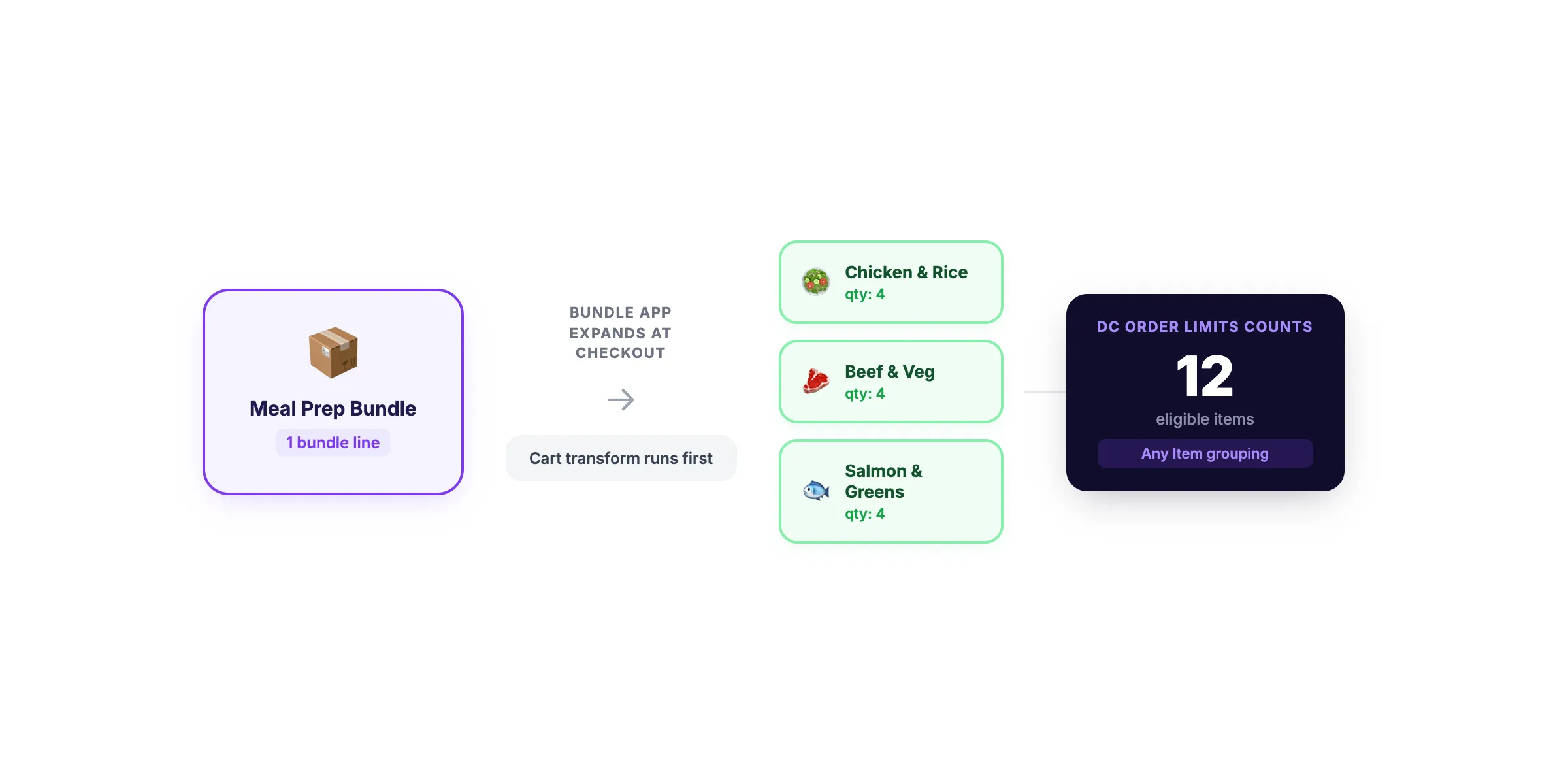
When a customer adds a bundle to their cart, the bundle app does something specific at checkout: it transforms the cart. The app replaces the bundle line (one product) with the individual components that make up the bundle.
This transformation happens before any order limit rules run. So by the time DC Order Limits checks what is in the cart, it sees the components rather than a bundle.
This matters for two reasons. First, if your rule is targeting the bundle product by tag or by product ID, it will never match. The bundle product is not in the cart at that point. Second, the quantity your rule sees is the quantity of the components, not the bundle count.
At checkout, a bundle of 10 meals plus 2 bonus meals looks like 12 individual meal products, so your rule sees 12 items rather than 1 bundle.
Two types of bundles: expand vs merge
Not all bundle apps work the same way. Most use what is called an expand-type structure, where one bundle line in the cart becomes multiple component lines at checkout. A few use a merge-type structure, where individual product lines merge into a single bundle line.
Expand-type bundles are the most common. These include:
- The official Shopify Bundles app
- MBC Bundles (when using “separate products” structure)
- Simple Bundles & Kits (in multi-SKU mode)
With expand-type bundles, your rule needs to target the components. The bundle product itself will not be present at checkout.
Merge-type bundles work the opposite way. Individual products merge into a single bundle line. With these, your rule sees the bundle as a quantity of 1, regardless of how many components are inside.
If you are not sure which type your bundle app uses, add a test bundle to your cart and check out. Look at your order to see whether the line items show the bundle product or the individual components.
What DC Order Limits actually counts
When DC Order Limits checks your cart, it looks at the line items that are present and sums the quantities of any items that match your rule’s product eligibility.
If you have a rule set to “Products with specific tags” and tagged the bundle parent product, DC Order Limits will look for that tag. It will not find it, because the bundle parent is not in the cart. The rule will not fire.
If you tag the component products instead, DC Order Limits will find them. It will sum their quantities across all lines.
You have three grouping options that change how that sum is calculated:
- Any Item: Counts total quantities across all eligible lines in the cart. A 3-meal bundle and a separate 12-meal bundle in the same cart gives you a count of 15.
- Per Product: Counts quantities separately for each product. If you have two different meal products in the cart, the limit applies to each one independently.
- Per Variant: Same as per Product, but at the variant level.
For most bundle scenarios, “Any Item” is the right choice when you want to enforce a total count across the whole order.
Where things go wrong: two real examples
Example 1: The eye-mask bundle limit that never fired
This is the beauty store from the intro, in full detail. They sell an eye-mask bundle through MBC Bundles using the “separate products” structure. The bundle contains two products: Left Eye Mask and Right Eye Mask. They wanted to limit customers to one bundle per order.
They created a rule in DC Order Limits, tagged the bundle product with “limited-bundle,” and targeted products with that tag. Maximum quantity: 1.
It never worked. Customers kept buying two and three bundles per order.
The problem: MBC Bundles in “separate products” mode expands the bundle at checkout. The parent bundle product disappears. DC Order Limits saw Left Eye Mask and Right Eye Mask in the cart. It never saw the bundle product. The tag never matched.
The fix: tag the component products (Left Eye Mask and Right Eye Mask) with “limited-bundle.” Set the rule to target that tag, maximum quantity 1, grouping set to Per Product.
If Left Eye Mask and Right Eye Mask are also sold as standalone products, you have a few options:
- Target them by specific product ID instead of tag, so the rule only fires on products in bundles
- Add a bundle-only tag like “eye-mask-bundle-component” to the components, and only use that tag on products that appear in bundles
- Set the limit to match the component quantity in one bundle (if each bundle contains 1 left mask and 1 right mask, a max of 1 per product correctly limits one bundle)
Example 2: The meal-prep store with exact quantities
A meal-prep store uses the official Shopify Bundles app. They offer a 10+2 promotional bundle: ten regular meals plus two bonus meals. They wanted to enforce exact order sizes of 12, 24, or 36 meals.
Their first attempt used quantity increments (multiples of 12). This ran into issues because “increment” rules allow any multiple: 12, 24, 36, 48, 60, and so on. They wanted to cap it at 36.
The correct setup uses Allowed Quantities instead. See our guide on how merchants use allowed quantities to create precise buying rules for more detail on the difference.
Here is how their rule is set up:
- In DC Order Limits, create a new Quantity rule
- Select the Allowed Quantities tab
- Enter:
12, 24, 36 - Set grouping to Any Item (this counts all eligible items in the cart together)
- Set product eligibility to “Products with specific tags”
- Tag each individual meal product with “meal”
- Do not tag the bundle parent product, non-meal add-ons, or extras
Now a customer who adds the 10+2 bundle gets 12 individual meal lines in their cart. DC Order Limits counts 12 items tagged “meal.” 12 is in the allowed list. Checkout proceeds.
A customer who tries to add two of the 10+2 bundles gets 24 meal lines, which is also allowed, and three bundles gives 36. Four bundles gives 48, which is not in the list, so checkout is blocked with your error message.
Setting up rules for bundles: step-by-step
The setup process depends on what you are trying to enforce. Here are the two most common scenarios.
Limiting how many bundles a customer can buy
- Identify the component products in your bundle. Open a test order to see exactly which line items appear.
- Add a unique tag to those components, such as “bundle-component” or a more specific tag if you have multiple bundle types.
- In DC Order Limits, create a Quantity rule.
- Set product eligibility to “Products with specific tags” and enter your component tag.
- Set maximum quantity with “Per Product” grouping, using the quantity of each component in a single bundle. If each bundle contains 1 of each component and you want a max of 1 bundle, set max quantity to 1, so each component is limited to one bundle’s worth.
- Write a clear error message, such as: “This bundle is limited to one per order.”
- Test by adding two bundles to a cart and attempting checkout.
Enforcing exact order sizes for bundles
- Tag the individual item products in your bundle (the ones you want to count), not the bundle parent.
- In DC Order Limits, create a Quantity rule.
- Select the Allowed Quantities tab and enter the valid sizes: for example,
12, 24, 36. - Set grouping to Any Item.
- Set product eligibility to your tag.
- Write an error message that explains what quantities are valid.
- If you sell non-bundle products in the same store, make sure those are not tagged with your component tag.
For quantity increments (when any multiple of N is fine), use the Quantity Increments tab instead. See how merchants use quantity increments to simplify pack-based ordering for that setup.
Bundle apps and how they work with order limits
Here is a quick overview of the most common bundle apps and whether they use expand-type or merge-type behavior.
Simple Bundles & Kits (top pick)
Rating: 4.9 stars (~729 reviews) | Free plan available
Simple Bundles & Kits uses cart-transform to split multi-SKU bundles into component line items at checkout. DC Order Limits sees the components directly, so rules targeted at component products count naturally.
One thing to be aware of: Simple Bundles also has an order-editing fallback mode. In that mode, the bundle is split after checkout has completed, not before. If your store is using this fallback, DC Order Limits will see the bundle as a single line with quantity 1. Target the bundle parent in that case, or check with Simple Bundles support about which mode is active.
View Simple Bundles & Kits on Shopify App Store
MBC Bundles
Rating: 4.9 stars (~350 reviews) | 13 bundle types
MBC Bundles supports many bundle structures. The “separate products” mode expands the bundle into components at checkout, so target your components. Other modes may behave differently; check which mode your bundles use.
View MBC Bundles on Shopify App Store
Bundler: Product Bundles
Rating: 4.9 stars (~2,000 reviews)
Bundler uses a discount-based model. The individual component products stay as separate cart lines (no transform at checkout), so DC Order Limits counts them directly. You target the component products the same as you would in a non-bundle scenario. No extra steps required.
View Bundler on Shopify App Store
Fast Bundle
Mix-and-match and volume bundle support, with solid support for subscription-bundle use cases.
View Fast Bundle on Shopify App Store
Native Shopify Bundles app
Free | First-party
Shopify’s own Bundles app is free and supports fixed bundles with up to 30 components. It uses the expand approach, so components appear on the order as separate line items. Target the component products in DC Order Limits.
View Shopify Bundles on Shopify App Store
A note on bundles and subscriptions
If you sell subscription products alongside bundles, there is a Shopify-level limitation worth knowing about.
Cart transforms (the mechanism bundle apps use to expand bundles) are not supported when a selling plan is attached to the cart. This means bundles that include subscription plans cannot be expanded at checkout using the standard cart-transform approach. The official Shopify Bundles app does not support selling plans for this reason.
For subscription apps like Seal Subscriptions, orders that repeat on a billing cycle are created through the API, not through the standard checkout. This means your order limit rules run at the initial checkout when the customer first subscribes. After that, recurring billing happens without going through checkout, so the rules do not apply to those repeat orders.
If you need to control subscription quantities specifically, look at how you structure the initial checkout and what the subscription app allows in terms of quantity management.
Lifetime limits and bundles
Lifetime purchase limits track how much a customer has bought across all their orders, not just the current cart. They work well for limited-edition bundles where you want each customer to get one chance, ever.
Bundles complicate this, though. Because bundles are recorded as component line items on the order, a lifetime limit pointed at the bundle parent product never accumulates usage. The customer buys the bundle, the order shows the components, and the limit sees no purchase against the bundle product it is watching.
The workaround is to add a small tracking component to every bundle. This can be a $0 product called something like “Bundle Slot” or “Eye Mask Bundle Token.” It does not need to be visible to customers; it just needs to appear in every bundle order as a line item.
Set your customer purchase limit to target that tracking component. Now every bundle purchase adds 1 to the customer’s usage count. When they hit the limit, checkout is blocked.
Steps:
- Create a $0 product in Shopify (you can hide it from search and browse)
- Add it as a component to your bundle in the bundle app
- In DC Order Limits, create a Customer Purchase Limit
- Set product eligibility to “Selected Products” and choose your tracking product
- Set the lifetime maximum quantity (e.g., 1)
- Customers who have already bought the bundle will hit this limit on their next attempt
This approach works reliably across all expand-type bundle apps.
Getting this right before launch
Bundle setups are more complex than standard product limits. The most common mistake is targeting the bundle parent product when the rules need to target the components. The second most common is using the wrong grouping option and getting unexpected counts.
Before your next launch, add a bundle to a test cart and check out. Look at the actual line items in the resulting order. Those are the products your rules need to target.
If you need to enforce specific order sizes, use Allowed Quantities rather than increments when there is a hard upper limit. Use quantity increments when any multiple of a number is acceptable.
For a full overview of how DC Order Limits handles min/max rules, grouping, and eligibility settings, see the complete order limits guide.
Install DC Order Limits on your Shopify store and start with a free trial. If you run into questions about your specific bundle setup, our support team can look at your configuration and help you get the targeting right.