· Dash Checkout · preorders · 9 min read
How to limit preorder quantities before overselling
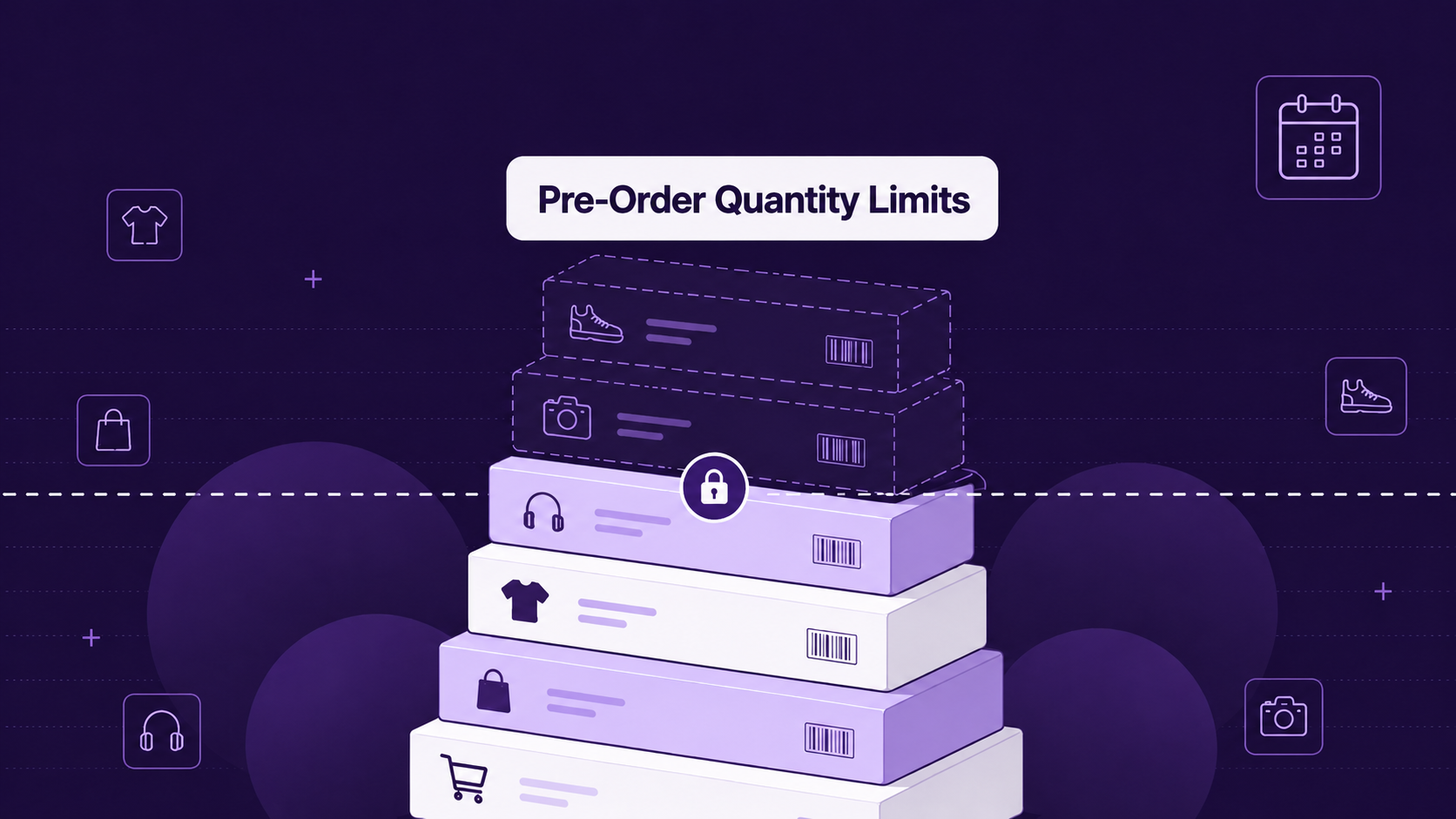
Without quantity limits, your preorder campaign can sell 500 units of a product you can only fulfill 100 of. Here is how to set smart preorder limits before launch.
A coffee roaster launched preorders for a limited-edition blend. They expected to sell 200 bags. They sold 847. The problem: they could only source 200 bags of those specific beans.
Now they faced a choice. Refund 647 customers and deal with the backlash. Or scramble to find substitute beans, ship a different product than advertised, and still deal with complaints.
This happens more often than merchants expect. Preorders feel like a safe way to gauge demand. But without quantity limits, demand can exceed your ability to fulfill. Every unfulfilled preorder becomes a refund, a support ticket, and a customer who won’t trust your launches again.
Why preorders oversell
Standard preorders let customers buy indefinitely. The “preorder” button stays active as long as the product exists. This works when you have unlimited supply or flexible production capacity.
It fails when you have constraints. Limited production runs. Exclusive collaborations. Seasonal ingredients. Custom manufacturing. Any situation where you know the maximum units you can deliver.
Shopify’s native preorder handling assumes you want to sell as much as possible. It doesn’t ask “how many can you actually fulfill?” That question is up to you.
Three types of preorder limits
Not every preorder campaign needs the same controls. The right limits depend on your supply chain and how you run launches.
1. Preorder campaign limits
This caps total preorder sales across all customers. When you hit your limit, preorders stop. Simple and predictable.
Use this when you know exactly how many units you can deliver. A vinyl pressing of 500 copies. A collaboration with 100 units. A seasonal product with fixed ingredient supply.
In DC Preorders, you set this with the “Preorder - limited availability” option. Enter your maximum quantity, and the system tracks sales against that cap. When you hit the limit, the preorder button automatically disables.
2. Per-customer preorder limits
This caps how many units any single customer can preorder. The campaign continues until you manually close it or it sells out naturally.
Use this when you want fair distribution but don’t have a hard cap on total units. Or when you need to prevent resellers from locking up your entire preorder allocation.
Set this with DC Order Limits using a Customer Purchase Limit rule. Target it to your preorder products using tags or product IDs.
3. Combined limits
This uses both. You set a campaign cap of 500 units and a per-customer limit of 2. You guarantee no more than 500 preorders total, and no customer can take more than 2.
Use this for high-demand launches where both total inventory and fair distribution matter. Limited sneaker drops. Album preorders. Exclusive merchandise.
Setting up preorder campaign limits
Here’s how to configure a preorder with built-in quantity caps.
Step 1: Create your preorder product in Shopify. Set inventory to 0 and inventory policy to “Continue selling when out of stock.” This lets Shopify accept orders even with no current inventory.
Step 2: Add the product to DC Preorders. In the DC Preorders app, select “Create Preorder” and choose your product.
Step 3: Choose “Preorder - limited availability” as the preorder type. This is the key setting. It tells the system to track sales against a cap.
Step 4: Enter your preorder limit quantity. This is the maximum number of units you can fulfill. Be conservative. It’s easier to reopen preorders than to refund oversold units.
Step 5: Set your shipping date. Customers see this as the expected delivery window. Be realistic about production and fulfillment time.
Step 6: Activate the preorder. Your product page now shows a preorder button with the limit enforced in the background.
When customers purchase, the app decrements the available preorder quantity. When it hits zero, the preorder option automatically stops accepting orders.
Managing inventory for limited preorders
You have two choices for how preorder inventory is managed.
Option 1: Let DC Preorders manage the limit. You set the quantity in the app, and it tracks sales against that number. This is the default behavior and works well for most launches.
Option 2: Manage inventory in Shopify directly. In your preferences, enable “Manage Preorder - limited availability inventory directly in Shopify.” Now you update quantities in Shopify’s inventory system, and DC Preorders reads from there.
Option 2 is useful if you have inventory management integrations that need to see preorder stock in Shopify. Or if your operations team prefers managing all inventory in one place.
Choose one approach and stick with it. Mixing both creates confusion about which number is the source of truth.
Adding per-customer limits to preorders
Campaign limits stop total overselling. Per-customer limits prevent any single buyer from taking too large a share.
Why this matters: Without per-customer limits, one reseller could preorder your entire limited run. You sell out instantly, but to one customer. When your product hits the secondary market at 3x the price, your actual fans are shut out.
Step 1: In DC Order Limits, create a new Customer Purchase Limit rule.
Step 2: Set the maximum quantity per customer. For limited releases, 1-2 units per customer is common. For less exclusive items, 3-5 might work.
Step 3: Target the rule to preorder products. Use “Products with Specific Tags” and enter your preorder product tag (like “preorder” or “limited-release”). Or use “Selected Products” to specify exact product IDs.
Step 4: Choose how to handle guest checkout. You can allow guests (limits tracked by email) or require login (limits tracked by account). Requiring login gives more reliable tracking but adds friction.
Step 5: Save and activate the rule.
Now when a customer tries to preorder more than their limit, they see an error message. They cannot complete checkout until they reduce their quantity.
Combining both limit types
For maximum control, use campaign limits and per-customer limits together.
Here’s a real setup for a limited product drop:
- Campaign limit: 500 units total (set in DC Preorders as “Preorder - limited availability”)
- Per-customer limit: 2 units per customer (set in DC Order Limits as Customer Purchase Limit)
This guarantees you never oversell past 500 units, and no single customer can take more than 2. Your 500 units spread across at least 250 different customers.
The campaign limit handles total inventory constraints. The per-customer limit handles fair distribution. Neither solves both problems alone.
What happens when limits trigger
When a customer hits a limit, they see a clear error message at checkout. DC Order Limits lets you customize these messages.
A good message explains:
- What the limit is
- Why it exists
- What they can do (reduce quantity, remove items)
Example: “This product is limited to 2 per customer to ensure fair access during our limited release. Please reduce your quantity to continue.”
Don’t leave customers guessing. A confused customer submits a support ticket. A clear message resolves itself.
Common preorder limit scenarios
Vinyl pressings: Label presses 500 copies. Set campaign limit to 500. Set per-customer limit to 2. When 500 sells, preorders close automatically.
Seasonal food products: You have ingredients for 300 units. Set campaign limit to 300. Keep per-customer limits loose (5-10) since repeat customers are fine.
Sneaker collaborations: Limited to 200 pairs across all sizes. Set campaign limits per size variant based on your allocation. Set per-customer limit to 1 pair across all variants.
Product launches: New product with uncertain demand. Skip campaign limits. Use per-customer limits (3-5 units) to prevent bulk buying. Accept preorders and fulfill based on actual demand.
Crowdfunded products: Campaign limit matches your funding goal (500 units = minimum viable production run). Per-customer limit prevents any single backer from controlling the project.
Handling oversold preorders
If you catch it early (before production), communicate immediately. Email customers explaining the situation. Offer options: stay on a waitlist for next production run, get a full refund now, or receive store credit with a bonus.
If you catch it late (after production), prioritize by order date. First customers get fulfilled. Later customers get refunds with apologies and store credit.
The best approach: don’t oversell in the first place. Set conservative limits. It’s better to reopen preorders twice than to refund 200 customers once.
When to skip preorder limits
Not every preorder needs quantity caps.
Print-on-demand products: Production scales with demand. No physical inventory to oversell.
Digital products: Infinite copies. Overselling is impossible.
Made-to-order items: Each order triggers production. You never hold inventory.
Demand testing: You want to see uncapped demand before committing to production quantities. Accept the risk of potential overselling in exchange for market data.
For these cases, standard preorders without limits work fine. Add per-customer limits if you still want distribution fairness, but skip campaign caps.
Getting started
Before your next preorder launch:
- Calculate the maximum units you can fulfill
- Set a campaign limit at or below that number in DC Preorders
- Add a per-customer limit in DC Order Limits
- Test with a test purchase before going live
- Monitor sales as the campaign runs
The 10 minutes spent configuring limits saves the days spent managing an oversold launch.
Install DC Preorders to start setting preorder quantity limits before your next launch.
Appendix
Content idea summary: This post addresses the gap between preorder enthusiasm and fulfillment reality. The strategic angle is practical prevention rather than damage control, targeting merchants planning limited preorder campaigns who haven’t yet considered quantity constraints.
Image prompts:
Image 1 - Hero image Placement: Top of article, below title Prompt: “A minimal illustration showing a countdown or quantity meter approaching a limit, with preorder indicators. Clean Shopify admin aesthetic, soft blue and purple tones, no text overlays. Shows concept of scarcity and control.” Style notes: Flat design, professional SaaS look, subtle shadows
Image 2 - Setup illustration Placement: Before “Setting up preorder campaign limits” section Prompt: “Clean illustration of a product page showing a preorder button with a small inventory counter badge. Minimal ecommerce interface, Shopify-inspired design, shows limited availability concept without text.” Style notes: Isometric or flat perspective, modern UI components, blue accent colors
Image 3 - Comparison diagram Placement: Before “Three types of preorder limits” section Prompt: “Simple diagram showing three approaches to limiting preorders: campaign cap (vertical bar), per-customer cap (multiple small stacks), combined (both). Clean infographic style, no text, uses shapes and colors to convey meaning.” Style notes: Minimal color palette, icon-style illustration, clear visual hierarchy