· Dash Checkout · features · 7 min read
How to set up back-in-stock notifications on Shopify (2026)
Sold out products are lost sales waiting to happen. Back-in-stock alerts capture customer demand while inventory is gone, then automatically convert that demand when stock returns.
A coffee roaster sold out of their holiday blend in November. By the time they restocked in early December, the customers who wanted it had moved on. Some bought from competitors. Others forgot entirely. The roaster had inventory again, but no way to reach the people who actually wanted it.
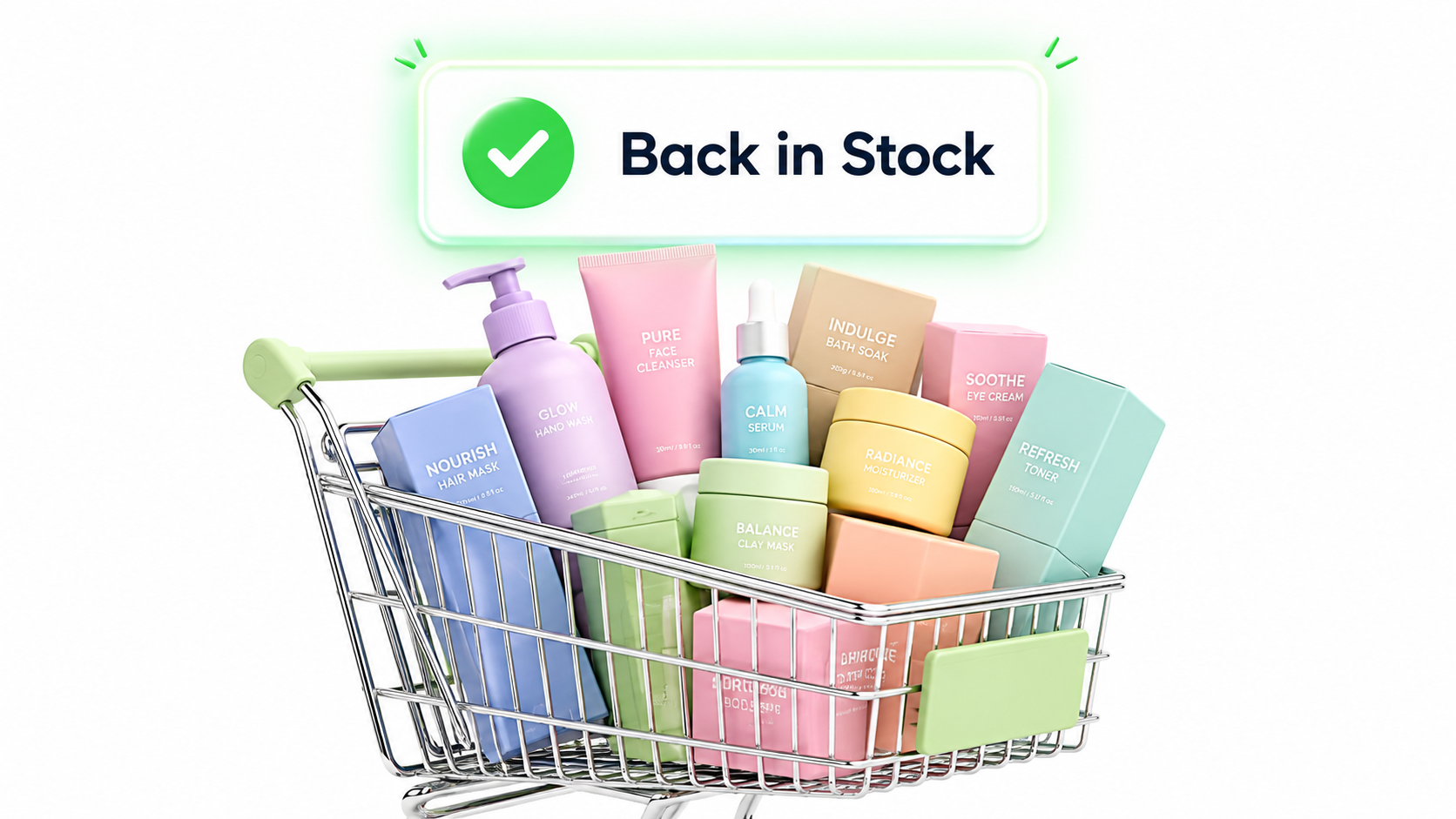
This happens constantly in ecommerce. A product sells out, demand disappears into thin air, and when stock returns you’re starting from zero. Back-in-stock notifications fix this by capturing customer interest while the product is unavailable and automatically converting that interest into sales the moment inventory returns.
Why back-in-stock notifications matter
When a product sells out on your Shopify store, most customers simply leave. Without a way to contact them later, you lose both the immediate sale and any future opportunity.
Back-in-stock alerts solve three problems at once:
Capture demand you would otherwise lose. Every customer who signs up is telling you they want to buy. That signal is valuable even if they never convert, because it shows which products have latent demand.
Automate the follow-up. Manually emailing customers when products restock is tedious and error-prone. By the time you send the email, the product might be sold out again. Automated notifications send within seconds of inventory arriving.
Convert at higher rates than cold email. Back-in-stock emails regularly see 30-50% open rates and 10-15% click rates. These are warm leads who already want your product.
How back-in-stock works on Shopify
The basic flow is straightforward:
- A customer visits a sold-out product page
- They enter their email in a signup form
- Your app monitors inventory levels
- When stock returns, the app automatically emails the customer
- The customer clicks through to buy
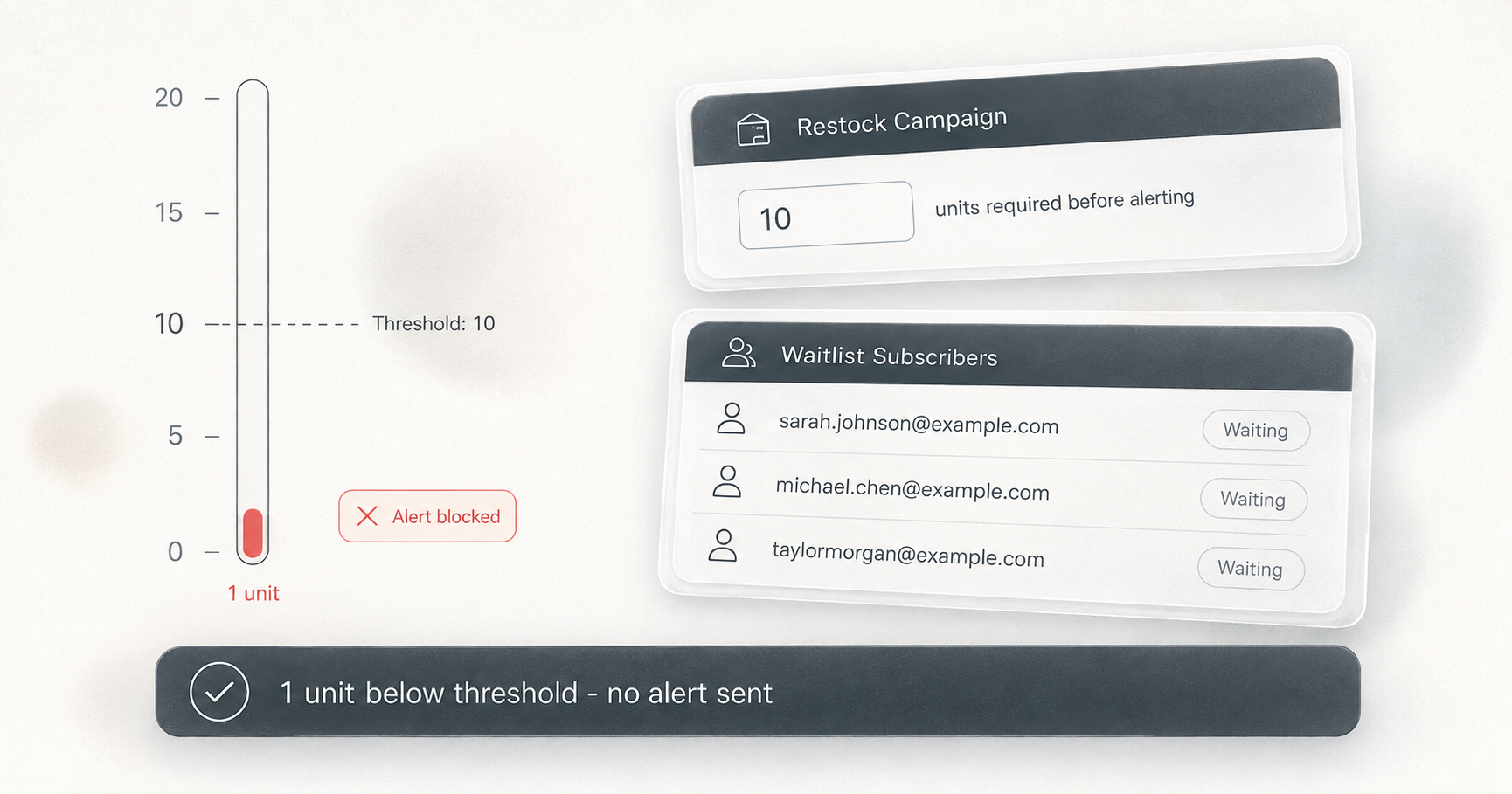
The details matter. Good implementations handle variant-level tracking (notifying only when the specific size or color they wanted is back), duplicate prevention (no one gets multiple emails for the same product), and inventory thresholds (don’t notify if only 1 unit is back and 50 people are waiting).
Setting up back-in-stock with Dash Checkout
Dash Checkout includes back-in-stock notifications as part of our inventory management toolkit. Here’s how to enable it:
Step 1: Enable back-in-stock alerts
Open Dash Checkout from your Shopify admin, go to Preferences, enable Back in Stock alerts, and save. This creates your default campaign and starts monitoring inventory for restocks.
Step 2: Add the signup form to your theme
Dash Checkout offers two ways for customers to sign up:
Inline form: A signup form that appears directly on sold-out product pages, right where the add-to-cart button would normally be. Add this by going to your theme editor, finding the product template, and adding the “Back in Stock Alert” block.
Floating popup: A “Notify me” button that appears in the corner of product pages when a variant is sold out. Enable this by activating the “Back in Stock Popup” embed in your theme’s app embeds.
You can use one or both. The popup catches customers who might scroll past the inline form.
Step 3: Customize your messaging
Both the inline form and popup support custom text:
- Heading (e.g., “Sold out? Get notified”)
- Description explaining what happens when they sign up
- Email placeholder text
- Button label (“Notify me” is the default)
- Success, duplicate, and error messages
Match the language to your brand. A streetwear store might say “We’ll hit you up when it’s back.” A luxury brand might prefer “Be the first to know when this item returns.”
Step 4: Configure your notification email
The back-in-stock email customers receive includes:
- A subject line with the product name
- A heading (“Good news, it’s back”)
- Body text explaining the restock
- A product image
- A “Shop now” button linking to the product
You can customize the email accent color to match your brand, set a custom from name and reply-to address, and translate emails for different languages.
Advanced campaign settings
Beyond the basics, Dash Checkout lets you fine-tune how notifications work:
Inventory thresholds
Set how much inventory needs to be available before notifications send. If you set a threshold of 5, customers won’t be notified until at least 5 units are in stock. This prevents sending emails for tiny restocks that sell out before customers can react.
Batch sizes
Control how many notifications send at once. If 500 customers are waiting and you set batches of 100, the first 100 get notified immediately, then the next 100 after a short delay. This prevents everyone landing on the product page at the exact same moment.
Notification delay
Add a delay between inventory arriving and notifications sending. This is useful if your inventory system sometimes shows false positives, or if you want to verify stock before alerting customers.
Product targeting
Create campaigns that only apply to specific products. Target by:
- Product tags (e.g., only send alerts for products tagged “limited-edition”)
- Specific products (select individual items)
- Specific variants (track only certain sizes or colors)
This lets you run different notification strategies for different product lines.
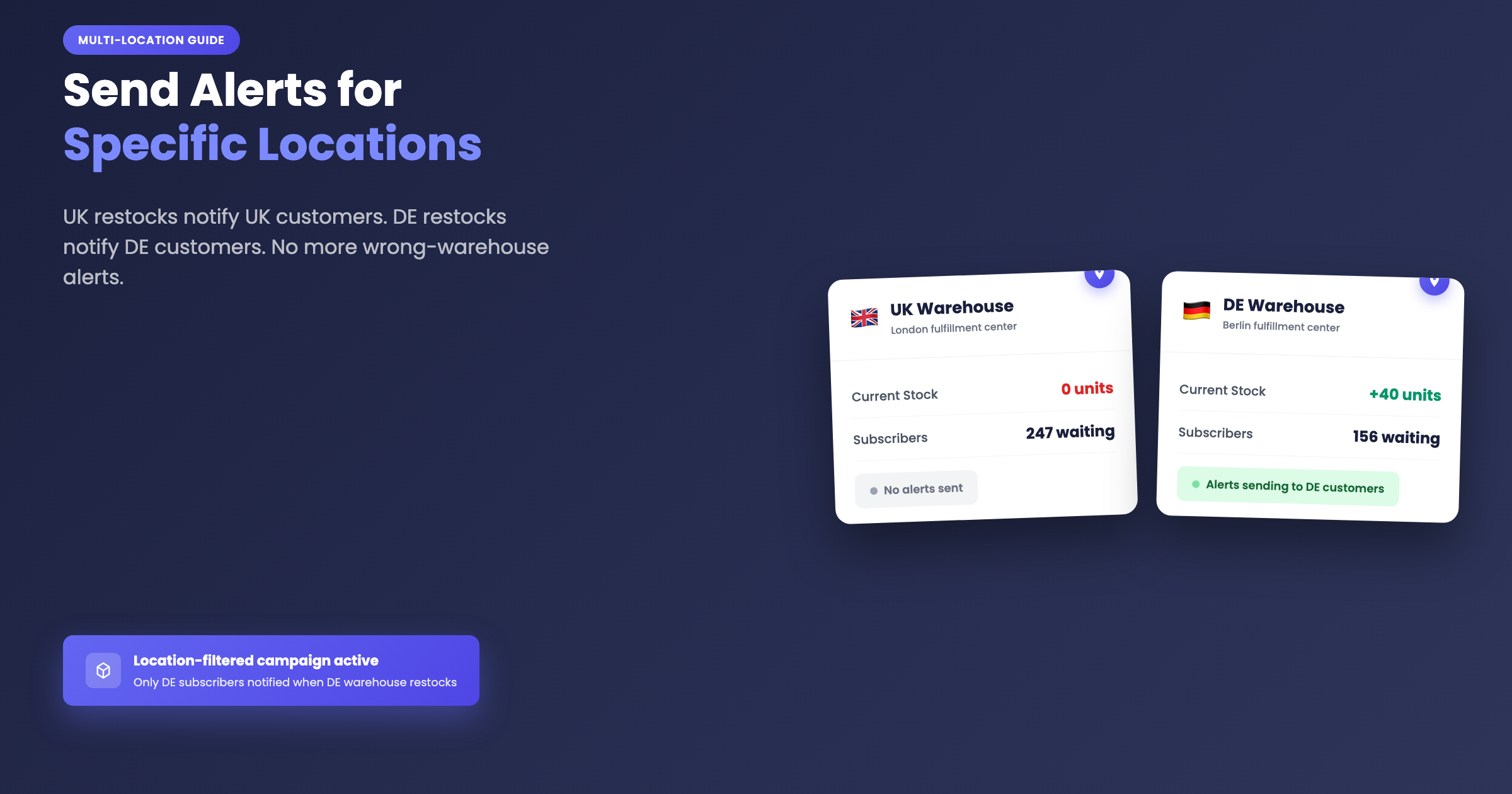
Location filtering
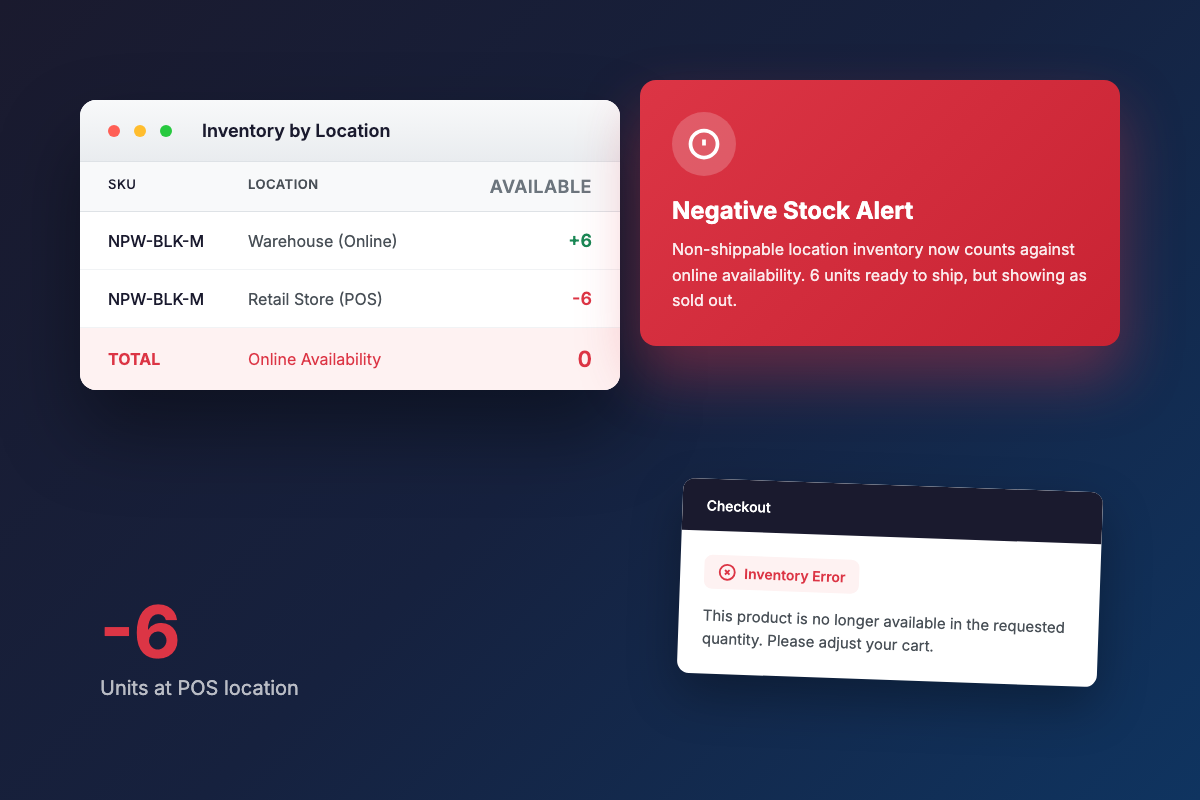
If you sell from multiple warehouses or locations, you can configure campaigns to only notify when inventory is available at specific locations. Useful if certain products are only sold from certain fulfillment centers.
Multi-channel notifications
Email is the default, but Dash Checkout supports additional notification channels:
Browser push notifications: Customers can opt in to receive a browser alert when items restock. This works even when they’re not on your site.
SMS and WhatsApp: Collect phone numbers and send text-based restock alerts. SMS requires explicit consent for compliance.
Each channel can be enabled or disabled per campaign, and customers can choose which channels they want to receive.
Tracking conversions
Back-in-stock notifications include built-in conversion tracking:
- Clicked: The customer clicked through from the notification
- Converted: The customer purchased the product after clicking
This data appears in your campaign dashboard, showing how many subscribers converted for each campaign. Notifications also include UTM parameters so conversions show up in Shopify’s marketing attribution.
Best practices for back-in-stock success
After working with hundreds of Shopify stores, here’s what works:
Make the signup form visible. The form should be impossible to miss on a sold-out product page. Place it where the add-to-cart button would normally be, or use the floating popup for extra visibility.
Keep the email simple. One product, one call to action. The customer already knows what they want. Don’t clutter the email with other products or promotions.
Set realistic expectations. If you’re not sure when a product will restock, don’t promise “back soon.” The signup form should just say you’ll notify them when it’s available.
Monitor subscriber counts. High subscriber counts on a product are a signal. Consider reordering that product sooner, or using the demand data to negotiate with suppliers.
Test with small restocks. Before doing a major restock with hundreds of subscribers waiting, test the notification flow with a small inventory update to make sure everything works.
Common questions
What happens if someone signs up and the product restocks before I’ve enabled notifications? Subscribers created before you enable the feature stay in pending status. Once enabled, they’ll be notified on the next restock.
Can customers unsubscribe? Yes. Every notification email includes an unsubscribe link. Customers can also be removed from the subscriber list manually.
What if the product sells out again before everyone is notified? Remaining subscribers stay in pending status and will be notified when stock returns again.
Does this work with pre-orders? Back-in-stock and pre-orders serve different purposes. Pre-orders let customers buy before stock arrives. Back-in-stock notifies them when stock returns. You can use both on the same store for different products.
Getting started
Sold-out products don’t have to mean lost customers. Back-in-stock notifications capture that demand and convert it automatically when inventory returns.
To set up back-in-stock alerts, enable the feature in your Dash Checkout preferences and add the signup form to your theme. Customers start signing up immediately, and notifications go out automatically when stock returns.
Install Dash Checkout to start capturing demand on sold-out products.